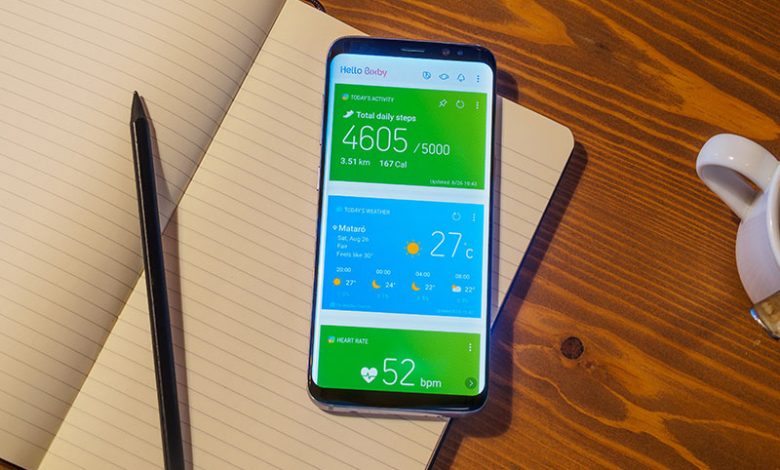
You must ensure that the Weather app on your Samsung device has permission to use background data for smooth operation and automatic updates. Without the necessary permissions, there might be issues related to the Weather app not refreshing or updating regularly. This can largely influence the performance of the Weather app. Therefore, follow the subsequent course of action to grant the necessary permissions:
- Access the Settings App. Start by accessing the settings app on your Samsung device. To do this, navigate to the home screen, swipe up to access the app drawer, and click ‘Settings.’ Settings are the control room of your device, where all the preferences can be altered based on the user's needs.
- Navigate to Apps. On the Settings page, find and tap on ‘Apps.’ This section comprises a list of all the installed applications on your device. The Apps option usually is located in the middle of the Settings page.
- Toggle System Apps. Within the 'Apps' setting, locate and turn on the 'Show system apps' toggle. System apps are those apps that are pre-installed on your device by the device manufacturer. This action unveils all the system apps that are usually hidden.
- Select Weather App. Scroll through the displayed list of system apps to find 'com. Samsung.android.weather'. This is the system name for the Weather app. Select it to open the app's settings and permissions.
- Enable Background Data Usage. Upon accessing the Weather app's information, open 'Mobile data.' Here, you'll find all the data-related settings for the Weather app. Ensure that the 'Allow background data usage' and 'Allow data usage while Data saver is on' toggles are switched on. This permits the Weather app to use your mobile data in the background, which is crucial for updating without glitches.
Table of Contents
Set Automatic Weather Information Updates
For the Samsung Weather app to function continuously and provide current weather data, it must be updated regularly. This can be achieved by setting the auto-refresh option in the app's settings. If the auto-refresh option is set to 'Never,' it can cause the Weather app not to update. Therefore, a regular refresh interval is essential for the app to function optimally.
- Access the Weather Widget. Begin by accessing the Weather widget on your home screen. Hold down the Weather widget for a few seconds to open the widget options.
- Locate Weather Settings. In the menu that pops up, select 'Weather settings.' This will lead you to the weather app settings, where you can modify how the app operates.
- Change Auto Refresh Settings. In the settings, locate and tap on 'Auto Refresh.' This opens the settings for how often the weather information should update. Ideally, an interval of 3 hours is suggested to maintain regular updates and accurate weather data. Therefore, choose '3 hours' from the list of options.
- Enable Auto Refresh on the Go. Further, you can also enable 'Auto refresh on the go.' This innovative feature allows the Weather app to refresh every time it detects any movement, ensuring that you have the most updated weather information while moving. This feature is specifically helpful for those continually traveling. To enable it, turn on the toggle next to 'Auto refresh on the go.’
- Allow Changes. Lastly, confirm the changes by selecting 'Allow'. This ensures all changes made to the Weather app settings are saved, and the app can now operate based on the given permissions and settings.
Give Required Weather App Permissions
The operation and functionality of the Weather app primarily rely on the permissions granted. Even the lack of basic permissions, such as the ability to display notifications, can impede the app's operation, causing issues like not displaying weather alerts on your phone. Therefore, to ensure the smooth functioning of the app, it’s critical to check and grant necessary permissions.
- Access the Weather Widget. Start with accessing the Weather widget on your home screen. For this, navigate to the home screen and long-press the Weather widget, which typically displays the time and current weather information.
- Navigate to Widget Information. Upon long-pressing the widget, you should see an 'i' icon. This represents the information related to the widget. Tapping on this icon opens widget-specific settings and preferences.
- Open Notifications Settings. In the informational settings that open, locate and select 'Notifications'. The Notifications settings determine how and when the widget interacts with the user through alerts and notifications.
- Enable Allow Notifications. Under Notifications settings, ensure the ‘Allow Notifications’ toggle is switched on. This permission allows the Weather app to display weather alerts and notifications on your Samsung phone. If this setting is turned off, the app won't be able to send notifications, compromising user experience. Ensure this is on to enjoy uninterrupted updates from your Weather app.
Addresses Location Detection Issues
The Weather app on your Samsung device needs to access your current location to provide location-specific weather updates. If the location access is disabled, the app may not update with current weather details or might fail to provide accurate data. Therefore, it is vital to ensure that your device's location settings are appropriately configured and that the Weather app has the needed permissions to use your current device's location.
- Open Weather App. Begin by launching the Weather app from the app drawer of your device. If you have a Weather widget on your home screen, you can access the app by tapping on the widget.
- Access App Menu. Once inside the app, locate the three horizontal lines, represented as '≡, 'commonly known as the hamburger icon, on the top-left corner of the interface. Tapping this icon opens the main menu of the Weather app.
- Navigate to Settings. In the expanded main menu, you will see a '⚙️' icon representing the Settings of the Weather app. Select this icon to open Settings. Here, you can alter all the preferences related to the operation of the Weather app.
- Enable Use Current Location. Inside Settings, ensure that the toggle next to ‘Use Current Location’ is turned on. This permission lets the Weather app detect your current location and update the weather information accordingly, providing accurate and real-time weather updates. If this setting is disabled, the Weather app might not update or provide inaccurate data based on a location other than your current one.
Optimizing the weather app on your Samsung phone is crucial for various reasons. It enhances overall performance by preventing sluggishness and crashes, conserves battery life by reducing resource consumption, and ensures faster data loading for up-to-date weather information. With an optimized app, you can trust the accuracy of weather forecasts, reduce data usage, and customize the app settings to your preferences. Moreover, an optimized app takes up less storage space and contributes to the stability of your device. Regular optimization addresses security concerns by keeping the app up-to-date with the latest patches. Ultimately, optimizing the weather app not only improves its functionality but also contributes to the overall health and efficiency of your Samsung phone.