
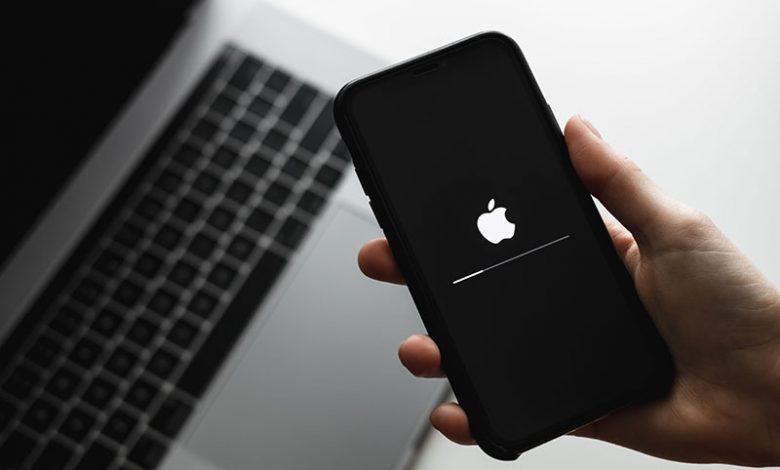
The Device Firmware Update (DFU) mode refers to a state where you can make changes to the software running the hardware on your iPhone or iPad. This advanced tool is essential when you need to down or upgrade your device's operating system or when you are troubleshooting some difficult software errors.
What is DFU Mode
The DFU stands for Device Firmware updates. It is a deeper restore state on your iPhone or iPad. When in this state, you can reinstall your device's software and firmware, eradicating bugs, glitches, and other errors that might be preventing your device from operating efficiently. DFU mode should be used when your iOS device is exhibiting issues that regular troubleshooting such as restarting or updating can't fix. It can solve persistent software problems effectively, providing a clean slate for your device without any previous software errors.
Things to Know Before Updating iPhone Firmware
The procedure to update iPhone firmware entails certain things to consider before updating. You must safeguard against data loss and other potential issues.
- Important data backup - Before executing a DFU update, back up all your essential data. If anything goes wrong while updating, you can still restore your data from the backup.
- Updating device software to the latest one - When you perform a firmware update, it allows you to update your device software to the latest version. Thus, it would be best if you were ready for the following settings, features, or interface changes.
- Not to perform if the device was water damaged - If your device has recently undergone water damage, it's not recommended to perform DFU. Water damage can interfere with the update process, further ruining your device.
- Use Finder or iTunes for firmware restoration - Device firmware restoration can be executed using Finder or iTunes. These applications are designed to help you restore your firmware efficiently without any complex process.
Each iPhone or iPad model has a different guide to executing DFU. Check your device's model and follow the precise steps. Exiting the DFU mode also varies by the model of your iOS device. Check your device's category and follow the exact steps to safely exit DFU mode.




