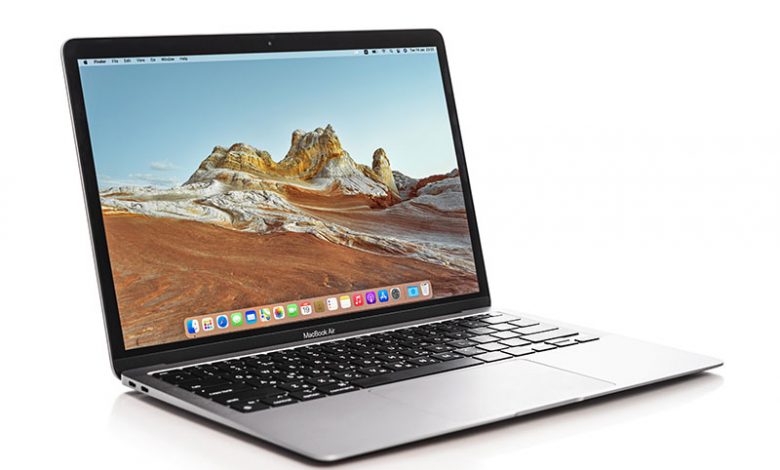
Software updates are an integral part of maintaining the optimal performance of your Mac. They bring in new features and fix potential bugs and security issues that may cause system vulnerabilities. Skipping updates can lead to performance issues, reduced functionality, and potential security risks.
Table of Contents
Updates Frequency
Apple periodically releases software updates that address various aspects of the operating system. The regularity of these updates may vary, but installing them promptly when available is crucial to ensure your Mac functions efficiently and stays protected against potential security threats.
Checking for Updates
Checking for updates on Mac is straightforward. Users navigate to the Apple menu, then select System Preferences, followed by Software Update. If updates are available, you can install them immediately or schedule them for a later time.
Overview of Mac’s Finder Utility
The Mac Finder utility is an essential file management tool integrated into the macOS operating system. The default file and folder navigation interface allows users to browse, organize, and manipulate their files and directories on their Mac computers. Finder provides a graphical user interface (GUI) that enables users to perform various tasks, including:
- Browsing: Users can navigate through their file system, accessing files, folders, and storage devices. The sidebar in Finder provides quick access to frequently used locations such as Documents, Downloads, Applications, and connected external drives.
- Copying and Moving: Users can copy, move, and duplicate files and folders between directories or storage devices. This feature is essential for organizing files and managing storage space.
- Renaming: Finder allows users to rename files and folders, making identifying and categorizing them easier.
- Creating Folders: Users can create new folders to organize their files systematically. Subfolders can be created within existing folders to categorize content further.
- Searching: The search functionality in Finder enables users to quickly locate files based on various criteria such as file name, content, date modified, and more.
- Previewing: Users can preview the content of files without opening them using the Quick Look feature. This is particularly useful for viewing images, documents, videos, and other files.
- Tagging: Finder allows users to assign color-coded tags to files and folders, providing a visual way to categorize and prioritize items.
- Sorting and Arranging: Users can sort files and folders based on different criteria, such as name, date, size, or kind. Additionally, items can be arranged in various view modes, including icon view, list view, and column view.
- Trash and Deletion: Deleted files are moved to the Trash, a temporary storage area from which they can be restored or permanently deleted.
- Quick Actions: Finder offers quick actions, such as rotating images, creating PDFs, and performing other tasks without opening additional applications.
Overall, the Mac Finder utility is the central hub for managing files and folders on macOS devices, providing users with a user-friendly interface and a wide range of features for efficient file organization and navigation.
Comparison with Windows Explorer
Like Windows Explorer, Finder provides a graphical interface for users to manage their files and directories. However, Finder presents a more streamlined interface and features such as tags and tabs, which help organize and locate files quickly.
Windows Explorer and Mac Finder are file management tools unique to their operating systems. Windows Explorer, or File Explorer, boasts a feature-rich interface with a ribbon menu, offering various views and quick actions. On the other hand, Mac Finder adopts a minimalist design, highlighting icon view by default and emphasizing Quick Look for previews. While Windows Explorer integrates with OneDrive for cloud storage, Mac Finder's integration with iCloud enables seamless file synchronization. Despite these distinctions, both utilities serve to organize, navigate, and manipulate files, reflecting the distinct design philosophies of Windows and macOS.
Organization of Files and Folders
In Finder, files and folders can be viewed in different formats, including as icons, as a list, in columns, or a gallery view. Users can categorize files with tags for quick access and sort files by name, kind, application, date modified, or size.
Examination of the Applications Folder and Utilities Folder
The Applications folder on a Mac is a central location where all installed applications are stored. It's similar to the "Program Files" directory on Windows. This folder contains the executable files of various software applications installed on your Mac. When you install a new application, it's usually placed in the Applications folder by default. To uninstall an application, you can usually drag its icon from the Applications folder to the Trash. Some applications might come with their own uninstaller, and in those cases, it's recommended to use that uninstaller to ensure all associated files are removed properly. Remember that while the Applications folder is where most apps are stored, some apps might be located elsewhere, especially if they don't require traditional installation or are sandboxed.
The Mac Utilities folder contains a collection of system tools and applications designed to manage, troubleshoot, and optimize various aspects of the macOS operating system. These utilities offer functionalities like disk management, system diagnostics, network analysis, security management, and more. They help users maintain their Mac's performance, resolve issues, and perform advanced tasks beyond daily use. Accessible through the Applications folder, the Utilities folder is a resource for both basic maintenance and more technical operations. Accessing the Utilities folder is typically done through the Applications folder or by using the "Go" menu in the Finder. Remember that while these tools are powerful, caution should be exercised, especially when making changes that affect system settings or configurations.
Understanding Mac Utilities: Activity Monitor and Disk Utility
Activity Monitor and Disk Utility are two essential tools in Mac's suite of utilities that provide valuable insights into your Mac's performance and allow you to perform maintenance tasks.
Mac Activity Monitor is a system utility that provides real-time insights into the processes and resource usage of your Mac. It displays CPU, memory, disk, network, and energy usage, helping you monitor and manage system performance and identify resource-hungry applications.
Disk Utility, however, is a tool for managing storage devices and filesystems on your Mac. It allows you to format, partition, and repair disks, create disk images and manage volumes. This utility is crucial for maintaining the health and organization of your storage drives.
Role of Activity Monitor in Monitoring System Performance
Activity Monitor provides real-time data about the processes running on your Mac. It displays information about CPU usage, memory usage, and energy consumption. With Activity Monitor, you can inspect individual processes, identify resource-hungry applications, and close unresponsive programs.
Introduction to Disk Utility for Maintaining Hard Drives
Disk Utility is a versatile utility tool used for performing disk-related tasks. It allows you to format, repair, erase, and partition hard drives, among other functions. The tool can help troubleshoot and solve disk errors, maintain optimal system performance, and keep your data safe.
Partition Inspection and Repair Options
With Disk Utility, you can inspect and repair disk partitions. The utility scans the partition map for irregularities and fixes them to prevent data corruption. Disk Utility provides options for recovering as much data as possible before reformatting the disk if a partition cannot be repaired.
Corrupted Files Repair
Corrupted files can hinder the performance of your Mac and cause various issues such as application failures, system crashes, and data loss. It's crucial to rectify these issues promptly to prevent further complications.
Situations Indicating Corrupted Files
Many signs can indicate you have corrupted files on your Mac. These include, but are not limited to, frequent application crashes, unexplained system freezes, startup failures, and sudden closure of files or applications. If your Mac displays any of these behaviors, it may have one or more corrupted files that must be addressed.
Step-by-step Guide to Use Disk Utility for Repairing Corrupted Files
Disk Utility, built into every Mac, is a tool that can help repair corrupted files. Follow these steps to utilize Disk Utility for file repair:
1. Open the Disk Utility application. You can do this by going to the Utilities folder in your Applications folder or typing 'Disk Utility' in Spotlight search.
2. In the Disk Utility window, you'll see a list of the drives and volumes connected to your Mac. Select the volume containing the corrupted files.
3. Click on the 'First Aid' button. First Aid is a function within Disk Utility designed to verify and repair file errors.
4. A dialogue box will ask you to confirm you want to run First Aid on the volume. Click 'Run'.
5. Disk Utility will begin verifying and repairing the selected volume. This process may take some time, depending on the size of the drive and the number of files it contains.
6. Once the process completes, Disk Utility will provide a report on what it has done. If it could repair the volume successfully, it would indicate so. If not, additional steps may be necessary. Either way, backing up your data regularly is advisable to protect against file corruption or loss.