
Solving Fortnite Connection Problems: Understand the Problem and Identify Initial and Detailed Fixes
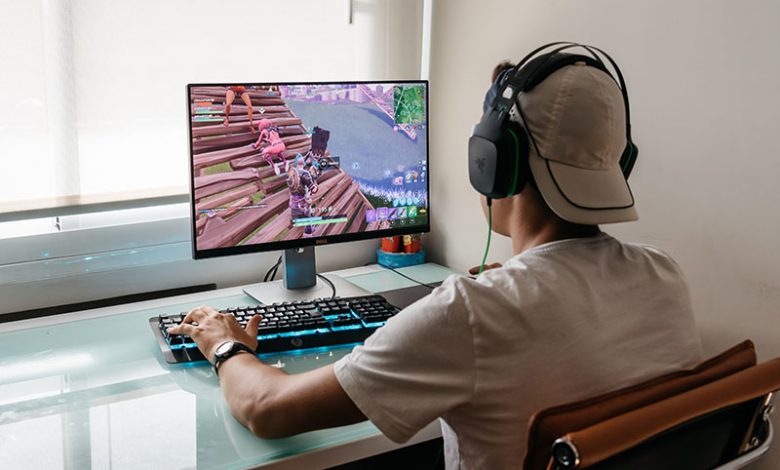
If you cannot log in to Fortnite servers and see a 'Please try again later' error, it's essential to understand the potential reasons for this issue. The most common cause tends to be a weak or unstable internet connection. If your internet connection is not robust, the game may not be able to maintain a stable connection to the server, resulting in the said error.
Table of Contents
Potential Triggers
Whilst a weak or unstable internet connection is the most common cause, other factors can prevent you from logging into Fortnite servers. For instance, your firewalls may be blocking the connection. Firewalls can sometimes view game connections as potential threats and block them, causing issues with your connectivity.
Another critical factor is network issues specific to your internet service provider (ISP). These issues could stem from various sources, such as maintenance periods, slow connection speeds, or general outages. It is also worth noting that issues with your router or modem can contribute to connectivity problems with online games like Fortnite.
Test Your Internet Connection
If you're experiencing issues with Fortnite game servers, the first step is to test your internet connection speed. Slow or unstable internet can often result in connectivity issues with the game. You can quickly test your internet connection speed using online tools like Speedtest. If the results indicate that your connection speed is far slower than usual, contacting your ISP for further support is advisable.
Check Your Firewall Settings
Sometimes, your firewall might be the underlying issue causing connectivity problems with Fortnite servers. Firewalls are designed to protect your computer from online threats, but they can sometimes wrongly block the game servers, resulting in connection errors. Therefore, you might need to temporarily disable or uninstall your firewall to confirm if it's indeed the problem. If disabling the firewall solves the connection issue, manually add Fortnite to the exception list to avoid future interruptions.
Troubleshoot Your Router or Modem
Occasionally, issues with your router or modem can interrupt your connectivity with Fortnite servers. Therefore, If you continue to face connectivity problems after checking your internet speed and firewall settings, performing a power cycle on your router or modem could be helpful. This involves briefly unplugging the device from the power source and then plugging it back in. This can often resolve any network issues you might be experiencing with your device. If the issue persists, it may be worth contacting your ISP for further assistance.
Connect the System to the Internet via an Ethernet Cable
Wireless internet can present challenges for gamers due to inconsistency in signal strength. If your game keeps disconnecting, consider using an Ethernet cable to connect your gaming system directly to your router. This direct connection bypasses potential wireless issues and can provide a more stable internet connection for your gaming needs.
Clear Temp Folder
Temporary files on your computer can occasionally clog up system resources, which might cause issues with game connections, including Fortnite. Regularly clearing your system's temporary files can improve overall system performance and reduce the likelihood of experiencing server connection errors in Fortnite. To do this, navigate to your computer's temp folder and delete any files therein. Don't worry; these files are meant to be temporary, and deleting them should not cause any issues with the functioning of your computer.
Flush Your DNS
Flushing your DNS (Domain Name System) is another effective tactic for troubleshooting connection issues. Temporary errors in your network’s data during runtime can interfere with establishing a stable connection to Fortnite servers, and flushing your DNS eliminates such errors. Follow these steps in the Command Prompt with administrative privileges: type ‘ipconfig /flushdns' and hit enter, then type ‘ipconfig /release' and press enter. Finally, type ‘ipconfig /renew' and press enter. Once you have done this, restart your computer and check if the connectivity issue persists.
Detailed Fixes
Check Fortnite Server Status
It might not always be an issue if you're struggling with logging into Fortnite servers. Sometimes, the Fortnite servers could be down for maintenance or experiencing issues. It's always a good idea to check the official Fortnite server status online to ensure there aren't any ongoing issues preventing you from logging in.
Launch Epic Games Launcher as an Administrator
Simply running the Epic Games Launcher, the platform Fortnite runs on, as an administrator could resolve the login issue. This is because administrative permissions allow the launcher to bypass certain restrictions or blockages that might inhibit the game's connectivity.
Update Your Graphics Card Driver
Outdated graphics card drivers may also cause connectivity issues with Fortnite. Ensure you're using the latest version of your graphics card driver, as this might fix the server login problem. Most manufacturers offer easy-to-use software to check and update these drivers.
Disconnect Your Google Account from Epic Games
If you used your Google account to sign into Epic Games, this might cause a server issue. Try disconnecting your Google account from Epic Games and creating a new Epic Games account instead. This new account might solve the server login problem.
Add Epic Games Launcher in Firewall as an Exception
Sometimes, your firewall might block specific programs, preventing them from accessing the internet, including Epic Games Launcher. Making the launcher an exception could help solve the server login issue as it effectively gives the launcher permission to access the internet without restrictions from the firewall.
Reset Winsock
Winsock, or Windows Sockets API, dictates how Windows network software should access network services. Resetting Winsock might solve the Fortnite server login problem as it could clear any potential issues in Windows' network software.
Flush DNS Cache
Lastly, flushing the DNS cache could also be a possible solution to your Fortnite server login issue. This helps by clearing any cache of IP addresses the system has saved, effectively resetting your connection to the internet and potentially clearing any issues you might be having with connecting to the Fortnite servers.
Other Potential Issues
Incorrect Username or Password
The simplest explanation for an inability to log into Fortnite servers could be that you've entered an incorrect username or password. If you suspect this could be the issue, you should attempt resetting your password and logging in again. Ensure you use the correct case and special characters as you enter your details since these fields are usually case-sensitive.
Multiple Connected Accounts to Epic Games
Having multiple accounts connected to Epic Games can sometimes cause login failures. To fix potential conflicts, visit the Epic Games official website and go to the 'Connected Accounts' section under 'Account.' Disconnect all connected accounts, including those of consoles, then log in again and check if the problem is resolved.




