
Table of Contents
Understanding the Problem
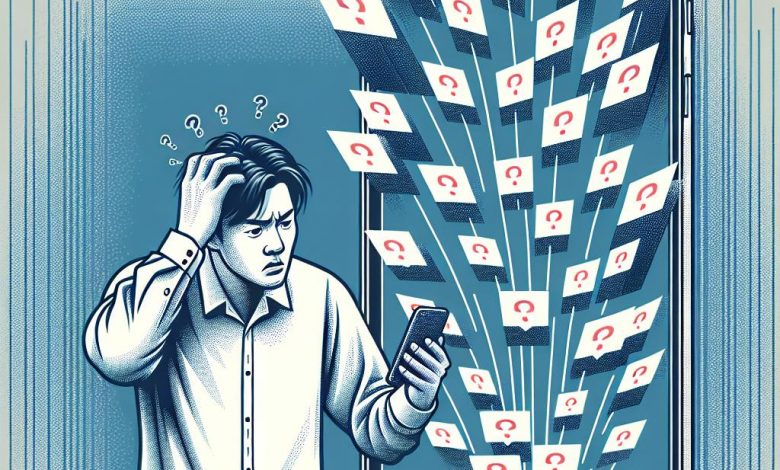
When it comes to using any tech device, there can be invisible issues that turn into prominent irritants over time. One such problem that iPhone users frequently encounter is the phantom, ghost, or unread email notifications. Even though there are no unread emails in your inbox, this discrepancy keeps you alerted about non-existent messages. Misleading and vexing, isn't it?
Acknowledging the Common Issue of Phantom or Ghost Email Notifications
This phantom email issue comprises misleading email notifications about unread emails. These notifications serve no purpose as the indicated unread emails are non-existent. When you attempt to find these emails, the search proves futile because, in reality, there are none. Hence, the notion of a "ghost" or "phantom" mail. This prevalent glitch can disrupt your daily workflow by keeping you unnecessarily preoccupied.
Identifying Causes Such as Software Bugs
However, understanding the genesis of this problem can help outline strategies for solving it. In essence, this problem seems to stem from software bugs. A software bug can occur when there's an error, flaw, failure, or fault in a computer program that causes it to produce incorrect or unexpected results or behave in unintended ways. These bugs seem to be the only reasonable explanation for this widespread problem.
Recognizing the Problem Isn’t Only Limited to Apple Mail
It's also important to note that this problem is not confined to Apple's built-in Mail app exclusively. Many users have reported similar issues with other email apps, supporting the inference that the hurdle is more about the software and less about the specific email application being used.
Basic Troubleshooting Methods
If you have identified that you are indeed dealing with ghost notifications in your Mail app, it's vital to begin some basic troubleshooting to resolve the issue. These straightforward steps can often fix the problem by resetting some of your device's processes.
Checking the Mail App for Any Unread Emails
The initial step is to check the Mail app for any unread emails manually. This action ensures that you aren't overlooking any message that could cause an unread indicator. It might seem redundant, given these are ghost notifications. Still, it's always better to cover all bases before diving into more complex solutions.
Force Quitting the Mail App and Restarting the iPhone
If checking for unread mails did not resolve the issue, consider force quitting the Mail app. Though not typically advised, force closing an app has proven effective when other methods fail for a specific application. To force quit the Mail app, launch the application, swipe up from the bottom of your iPhone, or double-press the Home button rapidly. This action will put you in app-switching mode, displaying previews of your recently accessed applications. Then, swipe up on the Mail app's preview to shut it down.
Next, it would be best to restart your iPhone. This action can help the system eliminate potential temporary glitches causing the issue. From the Home Screen, swipe up from the bottom and hold until the recent apps tray appears. Then, locate the Mail app and swipe up to remove it from the tray, hence force quitting it. To restart your iPhone, press and hold the Power button and either of the Volume buttons till the "Power Off" screen appears. Drag the slider to switch off your device and wait a few minutes for the iPhone to completely shut down. To switch it on, press and hold the Power button. After the restart, open the emails (if any), then verify if the Mail app displays the unread email badge.
Advanced Troubleshooting Methods
If the basic troubleshooting did not successfully resolve the issue, it may be time to move on to some advanced troubleshooting attempts. These steps can help address software bugs that aren't rectified by simple methods.
Updating iPhone to the Latest iOS Version
Given that the phantom email notification issue is likely due to a software bug, it makes sense to update your iPhone to the latest iOS version. If the bug isn't just temporary nor due to corrupt files, most of the other methods aren't likely to resolve it. Updating your iOS could be the key to recovery.
Here's a quick guide on how to update to the latest iOS: Open the Settings app on your device, head to the 'General' section, and tap the 'Software Update' option. If there's an available update, click on 'Install' or 'Update Now'.
Deactivating and Reactivating Email Accounts on Mail
A simple yet effective step in advanced troubleshooting is to deactivate and reactivate the problematic email account from your Mail settings. Deactivating an email address from Mail settings will effectively remove the account from the Mail app. Note that this does not delete the email address but temporarily removes it from the app. This action could help in resolving the unread email issue.
To deactivate and reactivate the email account, open the 'Settings' app on your iPhone, navigate to 'Accounts', select the Mail account facing the issue, and disable the 'Mail' toggle. Next, remove the 'Settings' app from your recent apps tray and restart your iPhone. Once your iPhone restarts, navigate back to 'Settings'> 'Accounts'> select the previously deactivated Mail account, and re-enable the Mail toggle.
Seeking Professional Assistance
If basic troubleshooting and advanced methods have not been able to resolve the issue, it likely indicates that it's more involved than a simple bug or glitch. At this point, seeking professional assistance might be your best course of action.
Contacting Apple Support for Help
Reach out to Apple Support as a first professional step. Apple’s customer service is equipped to handle a gamut of issues and may provide a solution. If this turns out to be a widespread error, they might either be able to address it directly or at least channel the issue to their software team. This team can ensure that the bug is fixed in an upcoming software update.
Scheduling an Appointment at the Apple Store’s Genius Bar
Alternatively, book an appointment at your local Genius Bar at the official Apple Store. The Genius Bar is staffed with well-versed professionals who are qualified to tackle a diverse range of technical problems. Since they specialize in Apple products, they should be able to troubleshoot and rectify the issue of the Mail app showing unread email notifications.
Importance of Addressing Phantom Email Issue
Recognizing and addressing the phantom email issue is integral to keeping your iPhone's Mail app effective and responsive. This problem, though seemingly insubstantial, can create a havoc in your email management regime. By meticulously following the troubleshooting methods or getting professional help, you can easily get rid of the ghost notifications and streamline your digital communication.




