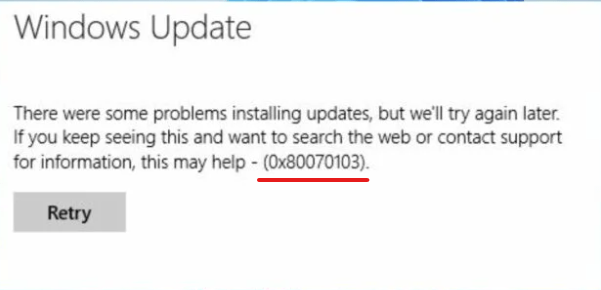
Many Windows users have experienced a common issue known as Windows Update error 80070103, indicated by error code 0x80070103. This issue can affect users of Windows 7, 8, 8.1, 10, and 11. Error code 0x80070103 is triggered when a device tries to install a driver already installed on the system. This error often arises when companies specialized in developing hardware drivers happen to upload already existing but newly named drivers onto Windows Update. The Windows Update service, in turn, detects those drivers as new and puts them in the next update.
That is why this error typically occurs while updating the drivers for your Windows operating system. It can appear when you check for new updates, download the latest drivers, or install them on your computer. The issue is ubiquitous across different versions of Windows, making it a prevalent concern for the Windows user community.
Table of Contents
Common causes of error 0x80070103
Several factors can contribute to the emergence of error code 0x80070103, namely:
- Incorrectly installed or outdated drivers
- Incompatible driver updates
- Corrupted or missing system files
- Conflicts between multiple versions of a driver
- Overlapping driver updates for a single device
- Glitches or bugs in the Windows Update service
Identifying the root cause of the error is essential for choosing the proper fix. Following the appropriate troubleshooting steps can resolve the issue and enjoy a seamless Windows experience.
Method 1: Run the Windows Update Troubleshooter
The Windows Update Troubleshooter is a built-in tool designed to diagnose and resolve issues related to the Windows Update service, such as error code 0x80070103. Running the troubleshooter can help identify potential problems and offer recommended solutions to fix them.
Accessing the Troubleshooter
Here is what you need to do to access the Windows Update Troubleshooter:
- Right-click the Start button and select Settings.
- In the System panel, scroll down and click Troubleshoot.
- Select Other troubleshooters from the available options.
Running the Windows Update Troubleshooter
Once you have accessed the Other Troubleshooters menu, run the Windows Update Troubleshooter as follows:
- Locate the Windows Update tile in the list of available Troubleshooters.
- Click Run next to the Windows Update option.
- Allow the troubleshooter to scan your system for possible issues with the Windows Update service.
Applying suggested fixes
After the Windows Update Troubleshooter has completed its scan:
- Please review the list of detected problems and their respective suggested fixes.
- Apply all recommended solutions to address the identified issues.
- For the changes to be applied, restart your computer.
If the error code 0x80070103 persists after running the Windows Update Troubleshooter, consider exploring other methods to resolve the issue.
Method 2: Pause and Resume Windows Updates
Another simple solution to resolving update install error 0x80070103 is pausing and resuming Windows updates. Users have reported that this method can fix the issue and can be performed immediately without waiting for a specific period. However, it may be necessary to repeat the process multiple times for it to take effect.
Pausing and resuming updates immediately
To pause and resume Windows updates, follow these steps:
- Right-click the Start button and select Settings.
- Select the Windows Update panel.
- In the Pause updates section, click Pause for one week.
- Immediately after pausing, click Resume Updates.
- If prompted, click Restart now once Windows has been updated.
Repeating the process if necessary
If the error code 0x80070103 persists after pausing and resuming Windows updates once, consider repeating the process a few more times to see if it resolves the issue. If the error continues to appear, move on to other troubleshooting methods.
Method 3: Restart the Windows Update Service
Restarting the Windows Update service can help resolve any glitches or issues causing the error code 0x80070103. The service may need fixing, or it could be attempting to install an already installed device driver update. Many users have found this simple fix effective in resolving the issue.
Accessing the Services window
To access the Services window, follow these steps:
- Hold down the Windows+R keys to open the Run dialog box.
- Type "services.msc" in the Run dialog and click OK.
Stopping and starting the Windows Update service
Once the Services window is open, follow these steps to stop and restart the Windows Update service:
- Look at the list of services and locate the Windows Update service.
- Right-click Windows Update and click Properties.
- In the Service status section, click Stop.
- Wait for a few seconds, then click Start to restart the service.
- Click OK to close the Properties window.
- Alternatively, select the Windows Update service in the list and click the Restart the service button at the top of the window.
- After closing the Services window, verify if the error code 0x80070103 has been fixed.
If the error persists, continue exploring other solutions to address the issue.
Method 4: Clear Windows Update Cache
Clearing the Windows Update cache, which stores update installation files, is another possible way to fix the update error 0x80070103. This process requires using Command Prompt to run specific commands that will clear the cache and restart the Windows Update service.
Running commands in the Command Prompt
If you want to open Command Prompt with administrator privileges, follow these steps:
- Hold down the Windows+R keys to open the Run dialog box.
- In the Run dialog, type "CMD" and hold down the Ctrl+Shift+Enter keys to open Command Prompt with administrative privileges.
Clearing the cache using commands
Once the Command Prompt is open, execute the following commands in sequence to clear the Windows Update cache and restart the update service:
- To halt the Windows Update service, enter "net stop wuauserv" and hit the Enter key.
- Enter "rd /s /q %systemroot%\SoftwareDistribution\Download" and press Enter to delete the contents of the Download folder within the SoftwareDistribution directory.
- Input "net start wuauserv" and press Enter to restart the Windows Update service.
After completing these steps, close the Command Prompt window and check if the error code 0x80070103 has been resolved. If the issue persists, continue exploring alternative solutions to address the problem.
Method 5: Report the Error Through the Microsoft Feedback Hub
Note! The methods outlined above only offer a temporary solution. A permanent solution can only be possible when the companies responsible for putting up the same driver(s) with different names on Windows Update sort out this nomenclature issue and Microsoft republishes the entire driver catalog on Windows update. As customers have no control over this issue, the recommended approach is to report the error through the Feedback Hub and allow Microsoft to collaborate with the driver's company or team to resolve the problem.
Error code 0x80070103 is a standard Windows error that typically occurs when there is a problem with device driver updates. When you encounter this error, your system has found a driver update, which is either already installed or incompatible with your current hardware configuration. This error can prevent you from installing the latest drivers for your devices, potentially causing compatibility issues or missing out on important updates. To resolve this error, you can manually update the drivers by visiting the manufacturer's website or using Windows Update to search for compatible drivers. It's crucial to ensure you have the correct drivers installed to maintain optimal system performance and compatibility with your hardware devices.