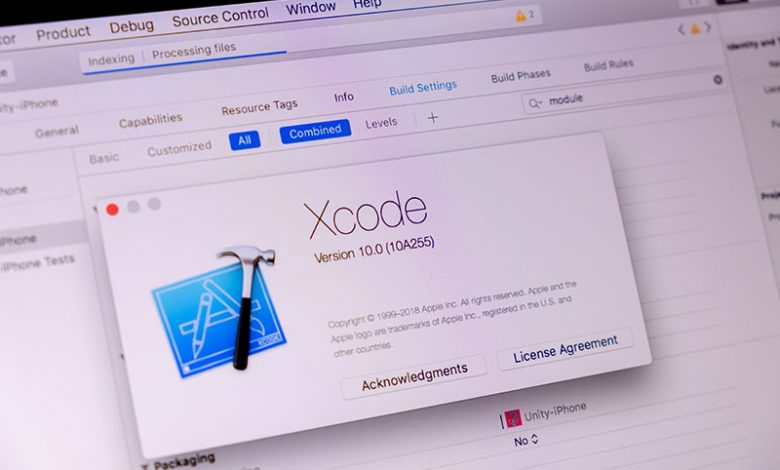
To understand why one might want to uninstall Xcode, it's essential first to understand what it is and its role in app development. Xcode is Apple's commonly used integrated development environment (IDE) for Mac OS X and iOS. It is a critical tool for building apps, offering features such as user interface debugging, iPhone simulation, live rendering of custom objects, performance testing, and more tools that developers of Mac, iPhone, and iPad applications make use of.
Table of Contents
Importance of Xcode to App Development
Xcode is an indispensable asset for developers building apps for Apple devices. It offers a breadth of features, from enabling live rendering of custom objects to performance testing. All these functionalities make app development a seamless process.
Reasons to Uninstall
Even with such sophistication and utility, there might be instances when users want to uninstall Xcode. The reasons for this are 1) Unnecessary Use and the Need to Conserve Hard Drive Space and 2) Technical Issues with Xcode 6 Version. Users can reclaim memory for other uses if there is no current or future need to use Xcode. The app is sizeable, with the installer alone being about 2GB and the toolset taking up at least 7GB of HDD space. Another reason could stem from the technical problems experienced when using the 6th version of Xcode, where users encounter bugs in the Swift compiler, causing the system to freeze or slow down.
Difficulties and Steps to Uninstall Xcode
Uninstalling Xcode can be complex because the software embeds its components into various OS locations. Xcode incorporates its components into different areas of the operating system, making it challenging to eliminate all footprints completely. Many might believe that moving the application to the Trash would suffice, but this simple workaround does not fully clean up the system.
Step-by-Step Uninstall
Please note that Xcode is a significant development tool, and the uninstalling process may take some time. Additionally, removing Xcode may impact any projects or work you have stored within it, so be sure to back up any critical data before proceeding with the uninstallation. To thoroughly uninstall Xcode, the process will require a hi-tech approach. That means navigating various file paths to locate and eliminate all components. To manually uninstall Xcode from macOS and iOS, follow the steps outlined below.
Uninstalling Xcode from macOS:
- Close Xcode: Before starting the uninstallation process, ensure that Xcode is not running on your Mac.
- Drag Xcode to Trash: Locate the Xcode application in the "Applications" folder. Drag the Xcode icon to the Trash in the Dock or right-click on it and select "Move to Trash."
- Remove Supporting Files: Xcode leaves some supporting files you may want to remove. Open Finder and go to the following locations:
- /Library/Developer/ (Delete the "Xcode" folder if present)
- ~/Library/Developer/ (Delete the "Xcode" folder if present)
- ~/Library/Caches/com.apple.dt.Xcode
- ~/Library/Application Support/Xcode
- ~/Library/Preferences/com.apple.dt.Xcode.plist
- ~/Library/Saved Application State/com.apple.dt.Xcode.savedState
Note: The "~" symbol represents your user's home directory.
- Empty Trash: Empty it to delete Xcode and its associated files from your Mac permanently.
Uninstalling Xcode from iOS:
- Locate the Xcode app: On iOS, Xcode is not installed like regular applications. If you have installed a beta version of Xcode on your iOS device using TestFlight, you can remove it from TestFlight.
- Open TestFlight: Open the TestFlight app on your iOS device.
- Find Xcode: In the TestFlight app, locate the Xcode app under "Active" or "Installed" tab.
- Uninstall Xcode: Tap on the Xcode app, then tap "Stop Testing" to remove the beta version of Xcode from your device.