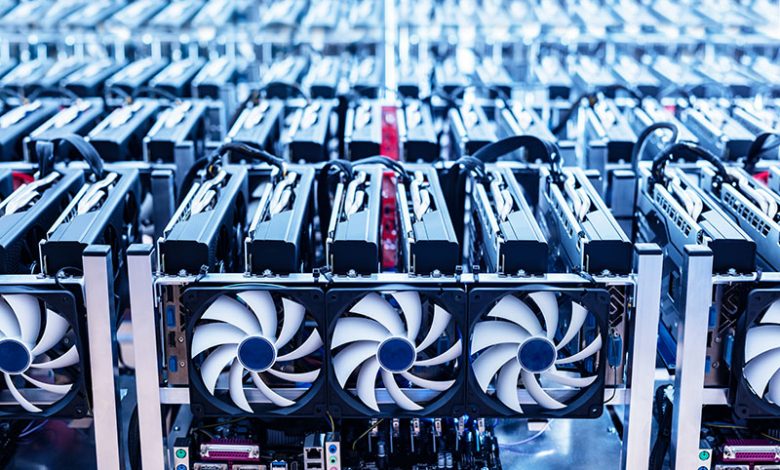
Graphics Processing Units, commonly known as GPUs, are integral parts of a gaming system. GPU represents a unique processor chip, explicitly built to yield the images you view on your PC screen. This encompasses graphics and video renditions. Whether playing games, streaming media, or using graphics-intensive applications, the GPU is hard at work, transforming data into understandable output. The quality and performance of the GPU can significantly influence the gaming experience. In gaming applications, the role of the GPU is to render and alter the memory to accelerate the creation of images intended for output to the monitor of a device.
Table of Contents
Types of GPUs: Integrated vs. Dedicated
There are two primary types of GPUs. The first type is an integrated GPU, which resides directly on your machine's processor and uses a small proportion of your system's memory. Integrated GPUs are commonly found in laptops, ultrabooks, and desktop computers. They share system memory (RAM) with the CPU and are generally less powerful than dedicated GPUs. On the other hand, a dedicated GPU is a separate graphics card installed in a computer's motherboard. It has a dedicated VRAM (Video RAM) and is designed solely for handling graphics-related tasks. Dedicated GPUs are commonly used in gaming PCs, workstations, and computers requiring high-performance graphics. This kind of GPU comes with its own card and memory. It is often better equipped to handle more advanced graphics processing tasks, delivering smoother performance for high-end PC games and virtual reality experiences.
Compatibility with Multi-Card Setups
Sophisticated gaming PCs can host more than one GPU, implementing a setup called SLI (Scalable Link Interface). SLI (Scalable Link Interface) is a technology developed by NVIDIA for multi-video card setups. It allows you to connect two or more NVIDIA graphics cards together to work as a single unit, effectively boosting gaming performance and graphical rendering by distributing the workload across multiple GPUs, resulting in smoother graphics and higher frame rates. However, not all games and applications support SLI, and setting up and configuring SLI can sometimes be complex.
In a dual-card configuration, two GPUs can share the processing load, potentially doubling the efficiency of your system. For example, while a solitary integrated card might only render images at 1080p, a pair of graphics cards could handle newer technologies such as 4K resolution.
Requirements to Run Multiple GPUs
Running multiple GPUs requires a specific set of hardware and an understanding of compatibility factors. Using dual graphics cards demands that your computer employs AMD or Nvidia technology that links the cards to produce a single output. Before pursuing this setup, gamers need to ensure they have a properly equipped system to accommodate this graphic processing level. When setting up such a powerhouse, you need to consider the following requirements:
- Motherboard Compatibility: Your motherboard must have enough PCIe (Peripheral Component Interconnect Express) slots to accommodate multiple GPUs. Some motherboards must also support specific multi-GPU technologies like NVIDIA SLI or AMD CrossFire. Check the specifications on the official product page of the motherboard or look for the CrossFire or SLI symbol on the box the motherboard came in to ascertain its compatibility.
- Power Supply Unit (PSU): Multiple GPUs consume more power, so you need a PSU with enough wattage to support them. A PSU with modular cables is preferred for better cable management.
- Cooling and Airflow: Multiple GPUs generate more heat, so you need adequate cooling solutions and good case airflow to prevent overheating.
- GPU Compatibility: In the case of SLI or CrossFire, the GPUs should be the same model. Adding a second GPU isn't like adding additional RAM; you can't mix and match different models. Instead, the second GPU you add must be identical to your system's existing GPU. You'd also need a bridge connector, a physical connector linking the GPUs to function together as a cohesive unit. The bridge connector could possibly be included with either the GPU or the motherboard. In addition to the hardware setup, the SLI or Crossfire feature must be activated in the GPU driver control panel to engage your dual graphic card’s potential and performance fully.
- Driver Support: Ensure that your graphics card drivers support multi-GPU configurations. Both NVIDIA and AMD provide driver support for various multi-GPU technologies. Check out the GPU driver control panel for further reference.
- Physical Space: Multiple GPUs can take up a lot of physical space in your case, so ensure your case has enough room to accommodate them.
- Operating System and Software Support: Some applications, especially games, must be optimized for multi-GPU setups. Additionally, not all operating systems support multi-GPU configurations.
- PCIe Bandwidth: PCIe lanes provide a certain amount of bandwidth, and this bandwidth is shared among all devices connected to those lanes, including GPUs. As more GPUs are added, the available bandwidth for each GPU decreases. Choose a motherboard that offers sufficient PCIe lanes and bandwidth for the GPUs you plan to use, or consider using GPUs with higher VRAM, as it can help reduce the need for frequent data transfers between GPUs.
- Connectivity: Check the number and type of monitor outputs on your GPUs to ensure they meet your needs.
- Budget: Running multiple GPUs can be expensive, considering the cost of the GPUs, the cooling solutions, and the upgraded PSU.
Before setting up a multi-GPU system, carefully research your specific use case and requirements to ensure that the benefits outweigh the potential complexities and costs.
Pros and Cons of Running Multiple GPUs
While running multiple GPUs in a system may have several gaming advantages, it is equally important to be aware of the drawbacks. This analysis aids in making an informed decision based on your gaming needs and the resources available to you.
Pros of Running Multiple GPUs
- Enhanced 3D Gaming Experience: Multiple graphics cards can offer an enriched 3D gaming experience and can noticeably improve gaming performance.
- Ideal for Multi-Monitor Gaming: With dual cards, you can easily power multiple monitors, thereby augmenting your gaming environment.
- Sharing Workload: Dual cards can share the processing workload, leading to better frame rates, enhanced resolutions, and the ability to use extra filters.
- New Tech Advantage: Additional cards can also help capitalize on newer technologies such as 4K Displays.
- Cost-effectiveness: Depending on the make, running two mid-range cards might be cheaper than running one equivalent high-end card. Buying a second of your current card can also be more economical than upgrading to a newer model.
Cons of Running Multiple GPUs
- High Power and Storage Requirement: Running dual cards can strain your system, requiring more power and storage from your PC. Make sure your gaming PC has enough wattage before purchasing multiple cards.
- Varying Game Performance: Not all games are optimized for multiple cards, and performance levels may vary. Some games might even run slower.
- Heat Generation and Noise: Two video cards running in close proximity can generate more heat and additional noise, potentially affecting the longevity of your hardware and disrupting your gaming experience.
- Possible Glitch Occurrence: Configurations like SLI and CrossFire might cause a glitch known as micro stuttering that makes the video appear choppy.
- Support for Multiple GPUs: Not every game supports multi-card setups. This is often dependent on your video driver, not the game itself. Therefore, driver settings may require adjustments to optimize game performance.
Use Cases for Multiple GPUs
While there are pros and cons to consider, there are specific applications where multiple GPUs prove highly beneficial. Let's explore a few scenarios where running more than one GPU is optimal and can greatly enhance the user experience.
- Streaming Games on Platforms like Twitch, Youtube, or Facebook: For those avid game streamers who use various platforms such as Twitch, YouTube, and Facebook to share their gameplay, having dual GPUs can immensely help. Multiple GPUs' added power and performance can deliver superior streaming quality, allowing for a smoother and more professional stream, even when running graphically demanding games.
- Enabling GPU Acceleration for Software like Adobe Suite: GPU acceleration, also known as hardware acceleration, refers to the utilization of a computer's graphics processing unit (GPU) to offload and accelerate tasks that would traditionally be performed by the central processing unit (CPU). Multiple GPUs can optimize the workflow process for multimedia experts who use software like Adobe Premiere Pro or Adobe Lightroom. The Adobe Suite has select SLI support. When GPU acceleration is enabled, tasks such as exports use less of your computer's resources, leading to quicker and more efficient processing times.
Other Performance Upgrades to Consider
When weighing the benefits of multiple GPUs, it's crucial to consider other performance upgrades that could bring similar benefits. For instance, a faster GPU or more advanced single card might achieve the same performance increase as two lesser-quality cards. Additionally, if adding another GPU, you must check that your current components can support the extra load. Otherwise, you might need to consider:
- CPU (Processor) Upgrade: A faster and more powerful CPU can significantly improve overall system performance, especially for tasks that rely heavily on the CPU, such as gaming, video editing, and multitasking.
- RAM (Memory) Upgrade: Increasing the amount of RAM in your system can improve multitasking and the performance of memory-intensive applications. Sufficient RAM is crucial for smooth operation, especially when running multiple applications simultaneously.
- Storage Upgrade: Upgrading to a solid-state drive (SSD) from a traditional hard disk drive (HDD) can significantly improve system responsiveness and reduce load times for applications and the operating system. Adding more storage space can also accommodate larger files and applications.
- Motherboard Upgrade: If you're planning to upgrade both your CPU and GPU, you might also need to upgrade your motherboard to ensure compatibility with newer components and to take advantage of the latest features.
- Power Supply Upgrade: Upgrading your GPU might require a more powerful power supply unit (PSU) to provide sufficient power to all components. A higher-quality PSU can also improve system stability and efficiency.
- New Cooling Solutions: If upgrading to more robust components, especially overclocking, investing in better cooling solutions like CPU coolers and case fans can help maintain lower temperatures and better performance.
Before making any upgrades, it's important to consider your specific needs, budget, and the compatibility of new components with your existing hardware. Additionally, some upgrades may require technical expertise or professional installation, so it's a good idea to research and plan accordingly.