
How to Adjust the Light Brightness of Your Xbox Series X/S and Controller
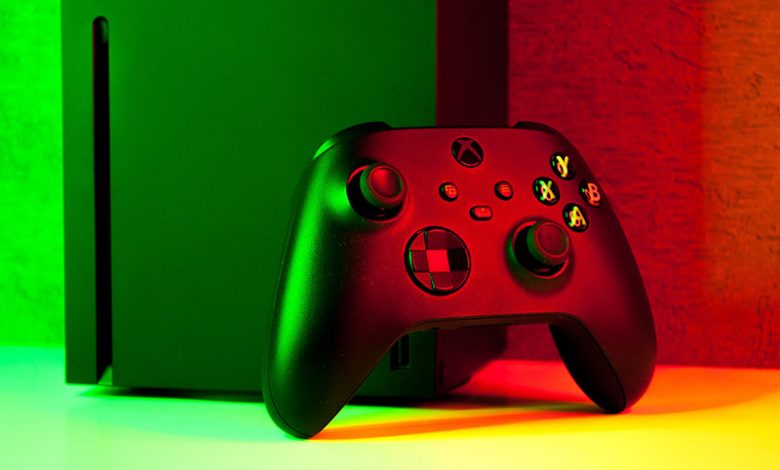
The Xbox Series X/S and its controller bring many exciting features to optimize and customize your gaming experience. One often overlooked feature that carries great significance is the ability to modify the brightness of the lights on both the controller and the console.
Table of Contents
Adjusting Xbox Series X/S and Controller Light Brightness
At first glance, modifying the brightness of your Xbox console and controller may seem unimportant. However, it serves a critical role in further personalizing your gaming experience. The Xbox's luminosity can sometimes be distracting, mainly if you're playing in a dimly lit environment or are simply sensitive to light. Having control over this aspect means you can decrease or increase the brightness to a level that is comfortable for your eyesight, contributing to a better gaming experience.
Adjusting Brightness in Dark Environments
For gamers who prefer to play in a dark environment, the ability to adjust the light brightness of their Xbox Series X/S and controller is particularly advantageous. The console and controller light up when in use, which can be distracting or disruptive when all other room lights are switched off. Hence, having the option to customize the light's intensity or even switching it off completely can enhance and personalize their gaming session. It allows gamers to play in a setting that they feel most comfortable and immersed in, adding another layer to the gaming experience.
Adjusting the Controller’s Light Brightness
Customizing the light brightness of your Xbox controller can significantly augment your gaming experience. Follow the steps below to adjust the brightness to suit your preference, and even turn it off if desired.
- Boot Up the Xbox: First, ensure your console is switched on. Remember that your Xbox controller should be connected before adjusting brightness.
- Navigate to the 'Profile & System' Tab: Press the Xbox button on your controller to open the Guide. Once the Guide is open, look for the 'Profile & System' tab and select it.
- Select 'Settings': After successfully accessing the 'Profile & System' tab, select the 'Settings' option using the 'A' key on your controller.
- Go to 'General>TV & display options>Night mode' Within the 'Settings' menu, navigate to 'General' then 'TV & display options' before finally selecting 'Night mode'.
- Select 'Preferences' then 'Controller Brightness': On the 'Night mode' screen, look for the 'Preferences' tab. Select it and then go to 'Controller Brightness.' This is where you can tweak the brightness of your controller light.
- Adjust the Brightness or Turn it Off Completely: Once you're on the 'Controller Brightness' screen, you will see a slider that you can adjust to increase or decrease the brightness of your controller's light. If you prefer, there's also an option to turn off the light completely. Slide to the left for this. Once you're satisfied with the light level, press 'B' on your controller, press the Xbox button, and select 'Home' to exit the settings menu.
Every time you turn on your controller, the light will automatically adjust to your predefined setting.
Adjusting the Xbox Series X/S Power Button Light Brightness
Unbeknownst to many, the Xbox Series X/S power button light's brightness can be adjusted to match your preferences. The straightforward process can significantly enhance your gaming experience, especially during nighttime gaming sessions.
- Boot Up the Xbox Series X: Start by powering on your Xbox Series X/S console. Adjusting the console light's brightness cannot be done unless the console is switched on and active.
- Navigate to 'Settings': Once the console is on, use the Xbox controller to navigate to the 'Settings' option. This is the central hub from where you can configure and personalize your Xbox console to your liking.
- Go to 'General,' then Select 'TV & Display Options': In the 'Settings' menu, go to 'General' and then select 'TV & Display Options'. This section will provide various settings for your console's display and features.
- Choosing 'Night Mode': Under 'TV & Display Options,' select the 'Night Mode' option. This feature is particularly useful for those who frequently engage in late-night gaming and prefer a less intense light emanating from their console.
- Select 'Preferences' then 'Power Button Brightness': Once in 'Night Mode,' look for 'Preferences' and then choose 'Power Button Brightness.' Here is where you'll find the options for adjusting the brightness level of your console's light.
- Adjust the brightness level or Turn it Off Completely: In the 'Power Button Brightness' menu, you can customize the brightness to your preferred level or even turn it off completely. This adjustment is made through a straightforward slider, which you can move to the right to increase brightness or to the left to dim it. Move the slider to the left if you want to turn off the console light. Once you're done with the adjustments, exit the 'Settings' menu. Every time you turn your Xbox Series X/S on, the power button light will reflect your personalized settings.
Changing the Color of the Controller’s Light
Customizing the brightness and color of your Xbox controller's light can make your gaming experience more personalized. Furthermore, adjusting the light can also be helpful for those who prefer a dimmer or even no light while playing in a darker environment.
Note: Before you customize your controller's light, you must ensure you have the latest Xbox update. This requirement is essential as the option to change the light color may not be available in older versions. If uncertain, check your system settings or consult Xbox's official guides on updating your console.
The Aesthetic Aspect
The light on the Xbox controller is not just functional but also provides an aesthetic purpose. Its brightness and color accentuate the controller's design and enhance the gaming experience. Being able to modify these settings is a simple yet effective way to add a touch of personal flair to your controller. However, it's worth noting that the Xbox controller's light color cannot be changed — you can only adjust the brightness.
If you find the light from the controller distracting or too bright, Xbox provides the option to either dim it or disable it altogether. This functionality is particularly useful during night-time gaming sessions or for light-sensitive ones. Select 'Night mode' in Settings, and access 'Controller button brightness' to adjust the brightness or turn off the light as you prefer. A console restart might be needed if the changes don't take immediate effect.




