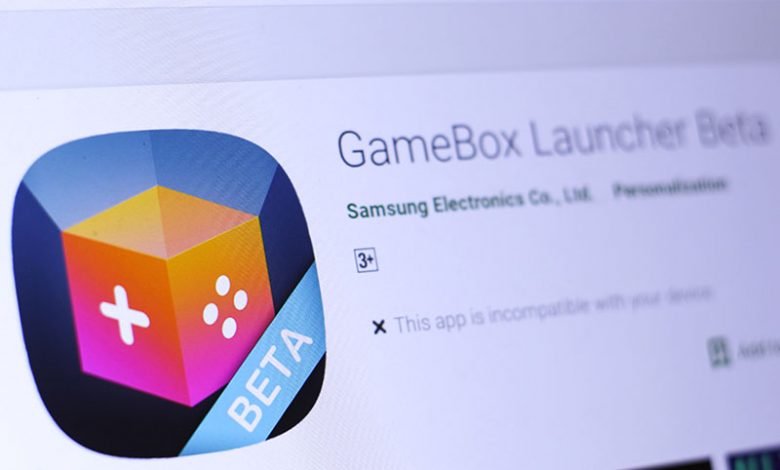
The Game Launcher is a feature available on Samsung phones that is designed to enhance the gaming experience for users. It's essentially a dedicated app that serves as a hub for all your mobile gaming activities, offering various tools and optimizations to make gaming more enjoyable. The Game Launcher is pre-installed on many Samsung devices and can also be downloaded from the Galaxy Store.
If the Game Launcher icon is missing from your Samsung phone, one of the most straightforward solutions is to ensure that Game Launcher is enabled. This process is pretty straightforward.
Table of Contents
Enabling Game Launcher
- First, you need to open up the 'Settings' of your phone. This can be found in your apps or accessed more directly by opening the drop-down notification bar at the top of your screen and looking for the 'Settings' gear icon.
- Once inside the 'Settings,' slide down and look for the option that specifies 'Advanced features.' This option packs many helpful and advanced requirements for your phone, including the Game Launcher.
- Turn the 'Game Launcher' to 'On' mode. Some people might accidentally turn it off, or it might not be enabled by default when you first set up your phone. But once turned 'On,' you should be able to see the Game Launcher icon on your app page.
Restoring Disabled Apps
Another potential reason the Game Launcher icon could be missing on your phone is that it might be disabled. Disabled apps are still installed and present on your phone but are not in use; thus, their icons do not appear. To restore disabled apps:
- Like before, opening 'Settings' is the first step.
- Then, look for the 'Apps' option. This will list all the apps that are installed on your device.
- Find 'Game Launcher' from the list of apps. Opening it will show whether the app is enabled or disabled.
- If 'Game Launcher' is listed as disabled, tap 'Enable' to reactivate the app. Post enabling it, the Game Launcher icon should reappear on your Home screen or in your App drawer.
Disabling and Re-Enabling Game Launcher
On the other hand, if you want your games to be displayed separately on the home screen and not in the Game Launcher, you can consider disabling the Game Launcher. This ensures all your games will appear in the app drawer. To disable Game Launcher. Navigate to 'Settings,' move to 'Advanced features,' and within it, you will find ‘Game Launcher.’ By turning it off, you are disabling the feature, which causes all of your games to appear individually in the app drawer. In some instances, the Game Launcher may have been inadvertently disabled on your Samsung phone - causing the icon to disappear from your app drawer or home screen. Don't worry; this can be easily rectified by navigating through your phone's settings and re-enabling the app. To re-enable Game Launcher:
- Start by selecting the 'Settings' option on your device. The gear icon typically symbolizes this.
- Once in settings, navigate to the 'Apps' section. This is where you can manage all the apps installed on your device.
- Scroll down until you find 'Game Launcher.' Once located, tap on it to access its settings.
- If 'Game Launcher' is currently disabled, it should have a toggle or button saying 'Enable.' Tap on this to reactivate the application. Your Game Launcher should be re-enabled, and the icon should reappear on your home screen or app drawer.
Unhiding a Hidden Game Launcher
If, after checking, the 'Game Launcher' is enabled and you still fail to locate the icon, the app may be hidden. Some users hide apps to reduce clutter, which can lead to difficulties locating these apps later. Follow these steps if you suspect that this might be the case. To unhide the Game Launcher
- Begin by launching the 'Settings' on your Samsung phone.
- Navigate to the 'Home Screen' settings. Here, you'll find options to manage your app visibility.
- Look for an option like 'Hide apps on Home and Apps screens.' Open this to view your currently hidden apps.
- If you locate 'Game Launcher' within this hidden apps list, there should be an option to remove it from the list, typically symbolized by a subtraction symbol ("⊖"). Tapping this should effectively unhide the app. After this, you should be able to locate the Game Launcher icon from your app drawer.
Sometimes, users may hide certain apps on their phones to reduce clutter or for other reasons. If the Game Launcher app icon is still not visible on your Samsung device, you may have accidentally hidden it. To unhide the app, follow these simple steps.
Changing Game Launcher Settings
Within the Game Launcher app, a setting can hide game icons from the home screen. If you want your games to be visible on both the home screen and in the Game Launcher, you must alter this setting. Go into the Game Launcher app, and tap on the three-line icon at the top of the screen. Following this, tap on the settings icon (usually represented as a gear). On the settings page, a section at the top should say 'Show game apps.' Click on this and change the setting to 'Game Launcher and Home screen.' This should restore your game icons to their visible state on your home screen.
Finding Game Launcher in the Wrong Place
Once in a while, you may be unable to spot the Game Launcher icon simply because you're looking for it in the wrong place. Game Launcher could be nestled inside an app folder you've overlooked. It's a typical instance, and the solution involves additional exploration in your app drawer.
Steps to Locate Game Launcher in App Folders
- Begin by accessing your 'App Drawer.' You can usually do this by swiping up on your home screen. All your installed apps can be located in your' App Drawer'.
- Now, carefully inspect all the App Folders. Some apps, including 'Game Launcher,' might be tucked away in these folders. These could be 'Samsung,' 'Google,' or any other custom folders you may have created.
- If you do locate the 'Game Launcher' app within these folders, long-press the app and drag it to your Home screen or back into the App drawer. Once located and moved to a more suitable place, you should be able to find the 'Game Launcher' with much more ease in the future.