
Troubleshooting Tips for Connecting Bluetooth Headphones
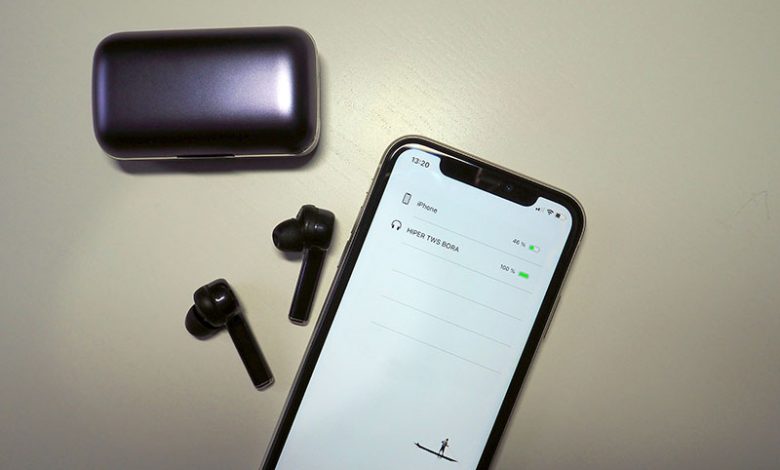
Occasionally, your Bluetooth keeps disconnecting due to the low battery level of your headphones. The entire process of monitoring the battery level can be completed in a few steps:
- Swipe down to see the Bluetooth icon: Swipe down from the top of the screen on your Android phone to see the Bluetooth icon on your phone menu.
- Connect headphones: Connect your headphones to your Android phone if you haven't done so yet.
- Check the battery level of headphones: Beneath the connected headphones, look for the battery level indicator. This indicates the current battery level of the headphones.
- Charge headphones if the battery is low: If you notice the headphone battery level is low or less than 5%, charge your headphones immediately to prevent frequent disconnections.
- Disconnect and reconnect headphones: Disconnect the headphones from your device after charging, then reconnect them. Your headphones should now stay connected regularly.
Table of Contents
Forget the Device and Pair It Again
If checking the battery level of the headphones doesn't solve the issue, try forgetting the device and pairing it again. Here's how:
- Slide down to Control Center: Slide down your phone screen to open the Control Center.
- Hold the Bluetooth icon to view paired devices: Press the Bluetooth icon to view the list of devices you've paired or connected with your phone.
- Select headphones to unpair: Find and tap on the headphone you want to unpair.
- Press and hold power-button on headphones for pairing mode: Long press the power button of your headphone to switch it to pairing mode.
- Touch 'Scan' on the Bluetooth settings: Go back to your phone's Bluetooth settings and tap "Scan" to search for more Bluetooth devices.
- Select the name of the headphone and complete the pairing: Once the name of your headphone appears on the page, select it to complete the pairing process again. Use the headphone for some time to see if the disconnecting problem persists.
Make Sure Bluetooth Is Unrestricted by Phone Battery
Another possible reason your Bluetooth keeps disconnecting could be because the battery setting of your Android phone is restricting it. To check if Bluetooth is restricted due to battery optimization settings on your phone, follow these general steps. Keep in mind that the exact steps may vary slightly depending on your device's manufacturer and Android version:
- Open Settings: Open the "Settings" app on your Android device.
- Battery or Battery Optimization: Depending on your device, look for either the "Battery" section or "Battery Optimization." This may be listed under "Device care," "Battery & performance," "Battery usage," or a similar option.
- Battery Optimization Settings: In some devices, you'll directly see a list of apps with battery optimization status. In others, you might need to tap on "Battery Optimization" or a similar option to access the list of apps.
- Find Bluetooth: Scroll through the list of apps to find "Bluetooth" or the app you're trying to check.
- Check Status: The status for Bluetooth might be one of the following: Optimizing: This means that the system is managing the app's battery usage, which might restrict Bluetooth activity when the app is not in use. Not Optimizing: This indicates that the app is not restricted by battery optimization and should usually work.
- Change Optimization Setting: If Bluetooth is listed as "Optimizing" and you want to allow it to work without restrictions: Tap on the app's name to access its optimization settings. Choose "Don't optimize," "Turn off," or a similar option to disable battery optimization for Bluetooth.
- Confirm: Save your changes and exit the settings.
It's important to note that while disabling battery optimization for Bluetooth might improve its functionality, it can also potentially impact battery life, mainly if Bluetooth is frequently used. Consider the trade-off between better Bluetooth performance and potential battery drain.
Reset Network Settings
If all else fails, try resetting your Android device's network settings. Here's how:
- Swipe up to view all apps and open Settings: Swipe up from the bottom of your screen to view all your apps and find Settings.
- Scroll to 'General Management' and open: Scroll down the list of options until you find the "General Management" option and tap on it to open.
- Access the 'Reset' setting: Tap the "Reset" option in the General Management settings.
- Use 'Reset network settings': Select "Reset network settings" from the options.
- Touch 'Reset settings': Tap on the "Reset settings" button to reset all network setting on your phone
- Pair Bluetooth headphones again: Now, pair your Bluetooth headphones again with your phone. This should ideally fix the issue if network mismatches or errors cause it.
Update Operating System
Finally, a dated operating system on your phone might be the reason for Bluetooth connection issues. Therefore, updating your phone's OS can help solve this problem. Here's how to do it:
- Open Phone Settings: Access the settings app on your Android phone. A gear icon usually represents this and can be found on your home screen or app drawer.
- Find 'Software Update' Option: Scroll down through the options in the Settings menu until you encounter an option labeled "Software update." You can check for and install updates to your phone's OS.
- Touch 'Download & Install' to Update Phone OS: Tap on the "Download & Install" option to update your device. This will prompt your phone to search for available updates. If any updates are found, they will be downloaded and installed. Depending on the update's size, you may want to connect your phone to Wi-Fi before beginning the download. After the update, the Bluetooth should stop disconnecting.