
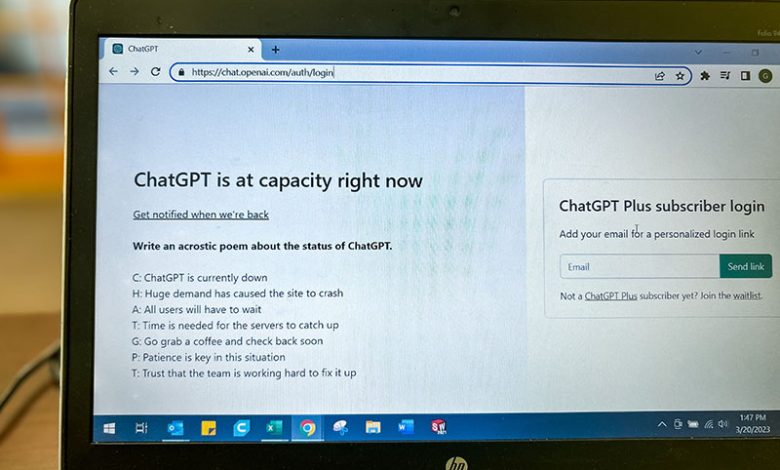
ChatGPT, an advanced AI language model, has gained massive popularity for its ability to interact with users and generate human-like responses. However, users may sometimes experience issues with ChatGPT not working or loading correctly. There could be several potential reasons behind this, such as server issues, high traffic, an unstable internet connection, or corrupt browser cache and cookies. In this guide, we'll provide practical solutions to help troubleshoot and resolve these problems.
Table of Contents
1. Check for Server Issues or Maintenance
On occasion, ChatGPT might be experiencing server issues or undergoing scheduled maintenance. These situations can cause temporary service disruptions. To verify if this is the root of your problem, check the official OpenAI website or the ChatGPT support page for any updates or announcements concerning downtime or maintenance. Additionally, you can visit websites like Downdetector to see if other users are reporting issues related to ChatGPT.
2. Verify Your Internet Connection
A weak or unstable internet connection can also cause ChatGPT not to work or load properly. To determine if this is the issue, check your internet connection by visiting other websites and ensuring they load as expected. If you discover that your internet speed is an issue, try the following steps:
- Restart your modem or router
- Move closer to your Wi-Fi source or try a wired connection
- Contact your internet service provider for further assistance
3. Clear Your Browser Cache, Cookies, or Disable Extensions
Corrupt browser cache and cookies can lead to difficulties when opening or interacting with websites, including ChatGPT. To resolve this issue, clear the cache and cookies in your browser. Different browsers have distinct methods for clearing cache and cookies, so it's crucial to follow the relevant directions for your particular web browser.
Clearing your web browser's cache and cookies can resolve issues caused by corrupt or outdated data. Depending on your browser, follow the steps outlined below:
Google Chrome
- Open the Chrome browser and click on the three-dot menu in the top-right corner.
- Select "Settings" and scroll down to "Privacy and security."
- Click "Clear browsing data," select "Cached images and files" and "Cookies and other site data," and then click "Clear data."
Mozilla Firefox
- Open the Firefox browser and click on the three-line menu in the top-right corner.
- Select "Settings" and navigate to the "Privacy & Security" section.
- Click on "Clear Data," choose "Cookies and Site Data" and "Cached Web Content," and click "Clear."
Microsoft Edge
- Open the Edge browser and click on the three-dot menu in the top-right corner.
- Select "Settings" and navigate to the "Privacy, search, and services" section.
- Click on "Choose what to clear" under "Clear browsing data," select "Cookies and other site data" and "Cached images and files," and click "Clear now."
Disable Browser Extensions
Some browser extensions may conflict with ChatGPT functionality. Disabling these extensions can potentially fix any issues you are experiencing. Follow the steps below for the respective browsers:
Google Chrome
- In Chrome, click on the three-dot menu in the top-right corner and select "More tools" > "Extensions."
- Locate the extension that may be causing the issue and toggle the switch to disable it.
- Restart your browser and check if ChatGPT is working now. If necessary, re-enable extensions one by one to identify the problematic extension.
Mozilla Firefox
- In Firefox, click the three-line menu in the top-right corner and select "Add-ons."
- Navigate to the "Extensions" tab, find the extension that may be causing the problem, and click the "Disable" button.
- Restart your browser and check if ChatGPT is functioning. If needed, re-enable extensions individually to pinpoint the troublesome extension.
Microsoft Edge
- Open Edge and click the three-dot menu in the top-right corner, then select "Extensions."
- Find the extension that may be responsible for the problem and toggle the switch to disable it.
- Restart your browser and test if ChatGPT works again. Re-enable extensions one at a time, if necessary, to determine the problematic extension.
4. Disable or Configure VPN and DNS Settings
Sometimes, having a VPN (Virtual Private Network) enabled or incorrect DNS (Domain Name System) settings can negatively impact your access to specific websites, like ChatGPT. If you are using a VPN, try disabling it and see if ChatGPT starts working. If the issue persists, check your DNS settings and make sure they are configured correctly. You can use public DNS servers like Google's Public DNS (8.8.8.8 and 8.8.4. for a more reliable connection.
5. Try a Different Browser or Device
Occasionally, browser compatibility or device-specific issues may prevent ChatGPT from functioning properly. In this case, try accessing ChatGPT using a different web browser, such as Google Chrome, Mozilla Firefox, or Microsoft Edge. If the issue persists across multiple browsers, attempt accessing ChatGPT on another device to see if this resolves the problem.
Remember that patience and persistence are key when dealing with technical difficulties. If none of the solutions seem to fix the problem, reach out to ChatGPT support for further assistance.




