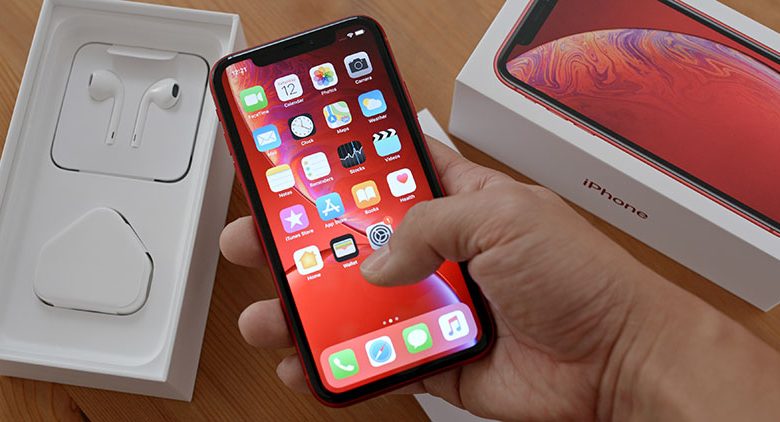
The convenience and versatility of the iPhone make it a well-known pick for many smartphone users. We rely heavily on our iPhones for tasks ranging from web browsing and video streaming to social media surfing. However, it's not uncommon to notice an unusually rapid depletion of mobile data on our iPhones, even when we aren't consuming content extensively. This issue often leaves multiple users needing clarification and support, as it can result in exhausted data plans within days and a significant waste of resources.
Table of Contents
The Issue of iPhone Users Rapidly Depleting Mobile Data
More often than not, iPhone users report that their iPhones consume more data than they utilize. Despite being mindful of data consumption, the rapid decrease in data allocation can baffle users, especially because it can disrupt regular usage and cause an unnecessary financial burden. If you've observed this issue with your iPhone, you're not alone; resolving it is crucial for a seamless experience.
Possible Causes Behind this Issue
There could be multiple reasons behind your iPhone consuming excessive data. Some applications use cellular data in the background even when not used actively. Automatic updates, high-quality streaming, and frequent usage of data-heavy apps can also lead to abnormal data consumption. Identifying and tackling these potential culprits is crucial to prevent your iPhone from exhausting your data prematurely.
Initial Measures
There are some easy initial measures that you could take when you notice your iPhone using excessive data. That includes checking the data usage on your iPhone and turning on the low data mode. These initial steps help monitor and control your iPhone's data consumption.
Launching the Settings Page on iPhone
To control your iPhone's data usage, you need to navigate your way through your device's settings page. Through this platform, you can monitor the amount of data that specific applications are consuming and prohibit apps from unnecessarily using your data. From here, you can also activate features, such as Low Data Mode, that can reduce data consumption by apps and services.
Enabling 'Low Data Mode' to Restrict Usage of Certain Apps
Enabling the Low Data Mode on your iPhone is one efficient way to handle excessive data usage. This feature restricts the data that apps and services use in the background. You can enable it by going to 'Settings,' then to 'Cellular Data,' and turning on 'Low Data Mode.' This move can be particularly beneficial if you're operating on a limited data plan or if your iPhone seems to be consuming too much data than it usually does. It's equally effective for Wi-Fi networks. Tap the information button next to the network's name and turn on Low Data Mode.
Modifying App Settings
Beyond basic initial measures, you can also take more specific actions to control data usage on your iPhone. That involves going deeper into the settings of your iPhone and modifying specific app settings. In particular, turning off automatic downloads and updates can be crucial, as it can disable specific applications from refreshing in the background.
Turning Off Automatic App Downloads and Updates
Apps are integral to how you use your iPhone, but they could contribute significantly to your mobile data usage without realizing it. How apps work means they frequently update and download data, which can use up much of your data. The best way to avoid this is to turn off automatic app downloads and updates. That minimizes the amount of data consumed in the background allowing you to conserve your data usage.
Disabling Automatic Downloads under the Mobile Data Section
Another setting you should consider modifying is disabling automatic downloads under your mobile data section. This setting will ensure that downloads only occur when you can access a Wi-Fi network. To do this, navigate to your settings, then mobile, and unselect the automatic downloads option. This action will ensure your mobile data is well-spent on downloads you could do on Wi-Fi.
Disabling Background App Refresh
Apps can also use up a significant amount of your data by refreshing in the background even when you're not actively using them. That feature can help apps remain updated, but it uses a significant amount of data. Thus, if you can handle occasionally waiting a few extra seconds for an app to update its content when you open it, consider disabling Background App Refresh. That will stop apps from consuming your data in the background and help you monitor your data usage more effectively.
Managing iCloud Usage
Your iCloud account is another area where data can easily and quickly be consumed without your immediate awareness. iCloud uses your data by backing up your files and information in the cloud. Though this is undoubtedly useful and important, unchecked, these actions can consume a significant amount of your data. Let's discuss ways you can manage iCloud's mobile data usage.
Going to Your Apple ID Name and Selecting iCloud
The journey to controlling your iCloud data usage begins with heading to your Apple ID. That is where you'll find the necessary settings to manage iCloud's mobile data usage. When you arrive at your Apple ID menu, you'll want to select iCloud. That will take you to the heart of your iCloud settings.
Turning off Large Applications That Could be Consuming Data in Apps Using iCloud
Only some people know it, but specific applications on your iPhone could be using iCloud to store and back up their data and files. When this happens, these applications can consume an excessive amount of data. To prevent this, you can manually control which applications can access iCloud. Once inside the iCloud settings, head to the 'Apps Using iCloud' section and simply deselect the applications you believe might be using too much data. This way, you ensure these apps no longer consume your data in the name of backing up.
Turning Off the 'Back Up Over Mobile Data' Option
Another critical action you can take is to ensure that iCloud only backs up when connected to Wi-Fi. That will prevent iCloud from taking up your valuable data. After navigating to your iCloud settings, disable the 'Back Up Over Mobile Data' option, ensuring that back-ups will only occur when connected to Wi-Fi.
Resetting Mobile Data Statistics
Another helpful tip in controlling data usage is regularly resetting your mobile data statistics. That will give you a fresh tracking start, helping you monitor your data usage more accurately and efficiently in each billing cycle.
Heading to the Mobile Data Option in Settings
Your iPhone device lets you keep track of how much data your mobile apps consume over a certain period. To do this, go to your iPhone's Settings application, find, and tap 'Cellular or Mobile Data.' If you're using an iPad, the path is 'Settings'> 'Cellular Data.' In this section, you can view each app's data usage and decide whether to allow or disallow certain apps from using mobile data.
Selecting and Confirming the 'Reset Statistics' Option
In the 'Mobile Data' options, scroll down to the bottom where the system services data usage can be reviewed, and you'll find 'Reset Statistics.' When you tap this, a prompt appears, asking for confirmation to reset all data statistics. By confirming this, you can begin a new data usage period, starting from zero. Resetting statistics works best at the start of your mobile data's billing cycle. This feature is beneficial for maintaining an accurate track of your data usage within a specific period so you can make swift adjustments when you observe a surge in data usage.