
Resolving iPhone Storage Issues: Step-by-Step Guide
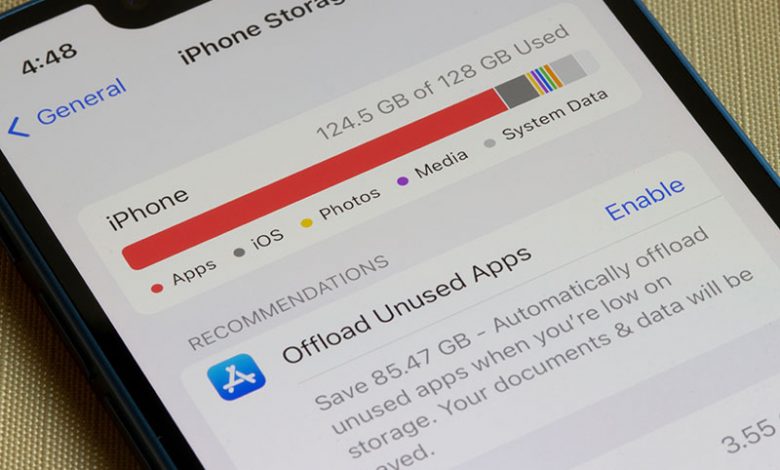
Many iPhone users often need help with running out of storage. As a result, they need help saving new photos and videos, installing new apps, or even receiving messages. That often happens when the storage of the iPhone is full of various data like apps, videos, music, and more. Even after deleting a few files or apps, the storage space problem might persist, leading to constant error messages, which can be frustrating.
Table of Contents
How Memory Affects iPhone Functionality
Efficient memory usage is vital to the smooth performance of an iPhone. With enough memory, users can take new photos, download music, or install new apps, limiting the device's functionality. In some severe cases, a lack of enough memory can also lead to a decline in the device's overall performance, causing lag and slower response times.
Dealing with Unnecessary Clutter
One of the primary reasons for the storage issue is the unnecessary data or clutter, such as old videos, photos, unused apps, and accumulated iMessage data. Deleting these can significantly free up substantial storage on your iPhone. It's also advisable to regularly check for the apps or files you don't use and delete them from your device.
Using Apple’s Built-in Storage Management Tools
Apple provides its users with built-in tools on their iOS software to manage storage effectively. These tools help users identify and eliminate the data that are taking up space on the device. It provides recommendations like apps to uninstall and old videos to delete, which users can follow to manage their iPhone's storage effectively.
Enabling Apps in iCloud
One effective way to free up your iPhone's storage space is by enabling iCloud apps. iCloud is a cloud storage and computing service provided by Apple Inc. that lets users store data such as photos, music, and files on remote servers for download to multiple devices. Here are the steps that you need to follow:
Reach out to Settings
The first step is to go to the Settings app on your iPhone. You will find your Apple ID profile name at the very top of the screen. Click on this to move to the next step.
Select the iCloud Option
Under the Apple ID settings, there is an option labeled iCloud. Click on this and then "Show All" to view all the apps you can enable on iCloud.
Enable Apps Under iCloud
Lastly, under the iCloud option, you will find a list of all the apps available on your iPhone. Toggle on the switch next to most, if not all, the apps. Doing so allows these apps to store their data in iCloud rather than your iPhone, creating more free space on your device.
Optimizing iPhone Storage with iCloud
Apart from enabling apps in iCloud, it's also helpful to turn on the "Optimize iPhone Storage" option within the iCloud settings. This feature allows your iPhone to reduce the size of your photos and videos without decreasing their quality significantly. That happens when your iPhone is running low on storage, thus allowing your device to have more room for other files and applications.
iCloud Storage Limitations
However, remember that Apple provides only free 5GB of iCloud storage. If you aim to store more data, you may need to upgrade to other iCloud+ plans offering greater storage capacity.
Optimizing iPhone Storage
To ensure you're maximizing your storage space, Apple has an option in the settings menu to optimize your iPhone storage. This feature reduces the size of files on your device, mainly photos, without significantly losing quality. That creates more space on your iPhone without sacrificing memorable moments captured in high resolution. Here's a step-by-step guide on how to do it:
Open Settings
Open the Settings icon on your iPhone's home screen. From the options provided, navigate to "Photos" to manage the photo storage settings.
Enable iCloud Photos
After getting to the "Photos" setting, you will see an option labeled "iCloud Photos." Enable this option by toggling the switch next to it. That will allow your photos to be stored in iCloud, saving physical storage on your device.
Select the Optimise iPhone Storage option
Once you've enabled iCloud Photos, you will see an option below labeled "Optimize iPhone Storage." Select this to activate the feature to replace your iPhone's full-resolution photos and videos with smaller, device-friendly versions. That will save substantial space in your storage, especially if you have numerous high-resolution media files.
Despite the size reduction, the optimized feature ensures no significant loss in the quality of media files. Plus, the original versions of your photos and videos are securely stored in iCloud, meaning you can download them in their high resolution whenever needed. This strategy frees up considerable space on your iPhone without deleting precious photos or videos. Remember, you can always download the original high-resolution files from iCloud, offering a balance between saving storage space and accessing high-quality images.
Managing iCloud Account Storage
In addition to on-device storage, you should monitor your iCloud account storage. Managing your iCloud storage aids in ensuring an efficient iPhone storage system. Besides storing media files, iCloud holds app data, backups, and many more. Here's how you can manage your iCloud account storage:
Accessing the iCloud option
To begin, open the Settings app from the home screen of your iPhone. Your Apple ID name will appear at the top; click on it to open the Apple ID settings. You'll find "iCloud" among the options in the Apple ID settings. Tap on it to view and manage your iCloud storage.
Managing Account Storage
Under the iCloud settings, there will be a "Manage Storage" option. Clicking on this will give you a detailed view of your iCloud storage, showing what is consuming space on iCloud. It includes the apps using iCloud for storage and backups and how much space they take up in iCloud.
Deleting unnecessary app data from iCloud
From the detailed view, you may notice outdated backups or unnecessary app data taking up space. You can opt to delete these, instantaneously freeing up some iCloud storage. Be cautious, though; only delete data you are sure you won't need in the future.
Upgrading iCloud space if necessary
If cleaning up your iCloud storage does not yield enough free space, or you have larger files to back up in iCloud, you may need to upgrade your iCloud account to include more storage. Remember that any upgrade beyond the free 5GB Apple will require a monthly subscription fee.
It's imperative to note that managing your iCloud account storage affects the storage of your iPhone. More free space on iCloud means a lesser load on your iPhone's physical storage, which translates to an efficient and effective iPhone storage system.




