
Navigating iPhone's Messaging System: Understanding Settings, Updates and Professional Help
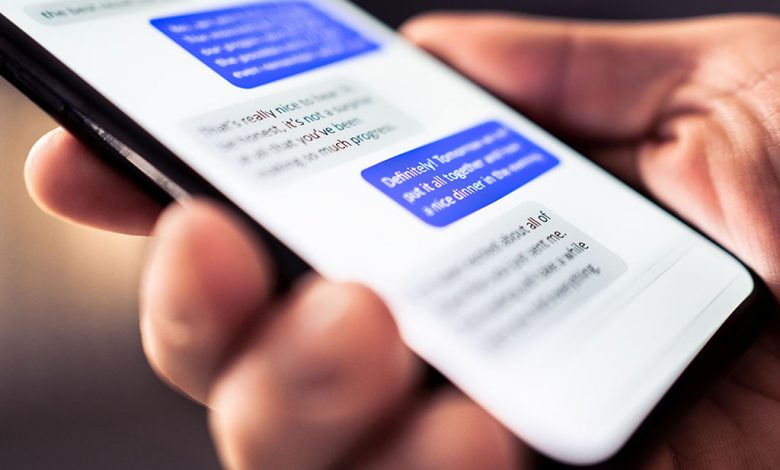
The iPhone messaging system utilizes three principal methods for sending messages, specifically group messages. These include iMessage, MMS, and SMS. Each mode differs in features and availability, contingent upon your network connection, settings, and carrier plan. Depending on these factors, the iPhone's default Messages application automatically selects from the three.
iMessage is Apple's proprietary messaging service for sending texts, documents, photos, videos, contact information, and group messages over data or Wi-Fi to other iOS or macOS users. Thus, if all the recipients in the group message are using Apple devices and have iMessage activated, the group message is dispatched as an iMessage.
Table of Contents
iMessage, MMS, and SMS
The distinctions between iMessage, MMS, and SMS majorly boil down to the devices and information being disseminated. As mentioned, iMessage is exclusive to Apple devices and can transmit many data types. The service does not rely on a cellular network, permitting use where only Wi-Fi is available.
On the other hand, MMS (Multimedia Messaging Service) refers to a standard way to send messages that include multimedia content to and from mobile phones. It extends the core SMS (Short Message Service) capability to encompass the transfer of media files. If you send a group message to recipients not using iMessage, the text is sent as an MMS or an SMS. While MMS can accommodate media files, SMS is confined to text-only communication and is cellular networks' most basic form of messaging.
Sending Group Messages in Mixed-device Platforms
In an ideal scenario, all participants in a group chat will use iPhones. This uniformity ensures seamless conversation threads and content sharing since every recipient can access the same messaging features. However, this is rarely the case, and challenges often arise in real-world scenarios where chats involve a mix of iOS and non-iOS users.
The first challenge presents itself when group messages deviate from the iMessage service. Recipients using non-Apple devices or iPhones with iMessage deactivated will receive these as standard MMS or SMS texts. In extreme cases, recipients may receive the group message as individual messages. This discrepancy occurs because some devices, such as certain Android phones, handle group messages differently from iPhones.
Another difficulty arises when iPhone users have not enabled MMS and Group Messaging features. These settings ensure an optimal group chat experience with a mixed roster of devices.
An interim solution may be to erase the group text thread and initiate a new one, though this approach has no guarantees. Within the Messages app, a quick swipe left, followed by a tap on the Trash icon, can delete any individual thread. The same can be applied to single messages within a thread.
Checking and Changing Settings
Your iPhone settings are crucial in ensuring that group messages work as desired. Two settings within your iPhone influence your group message experience: MMS and Group Messaging. Having these features enabled can be instrumental in rectifying your group messaging difficulties.
Enabling MMS and Group Messaging
Although this might seem rudimentary, verifying that MMS Messaging and Group Messaging settings are enabled can save you a lot of frustration. To check these settings, navigate to 'Settings' on your iPhone, followed by 'Messages'. Here, confirm if MMS Messaging and Group Messaging are activated. However, it's worth noting that Group Messaging might not appear if you use a newer iOS version, such as iOS 17.
If, for some reason, the Group Messaging feature is deactivated, or if your group messages still fail to function as intended, follow these steps: Disable the Group Messaging setting and restart your device. Upon restart, reactivate Group Messaging and assess if the situation improves.
To enable group messaging for MMS, follow these steps: From your iPhone's Settings, scroll down and select 'Messages.' Under the SMS/MMS section, you will find 'Group Messaging.' Activate this toggle to ensure all your group MMS texts gather in the proper threads.
Note: For a smooth and seamless group chat, all iPhone users in the group must enable the same settings on their devices. Compatibility in settings assures everyone access to identical messaging features, erasing the chance of individuals sending or receiving group messages.
Starting a New Group Text Thread
If the struggles with group messaging persist even after checking and adjusting your settings, you could attempt to create a fresh group text thread. This action breaks away from potential issues linked to the existing chat. Swipe left in the Messages app to view the Trash icon, deleting any problematic thread.
However, remember that while this method might offer temporary relief, it does not directly address the underlying issue of mismatches in iPhone settings. Plus, deleting a thread could erase valuable past conversations. Therefore, tread lightly when considering this alternative.
Keeping Your iPhone Up-to-Date
Regularly updating your iPhone is a preventative measure that safeguards your device against various anomalies, including issues with group messages. An updated iPhone operates on the latest iOS version, introducing new features, fixing bugs, enhancing performance, and providing the latest security patches. This helps augment your device and provides a smoother user experience.
Running your iPhone's most recent iOS version is instrumental in ensuring optimal performance and functionality. The freshest releases often come with new system enhancements, bug fixes, and new options, making your iPhone experience better, faster, and more efficient. Specifically, regarding group messaging, the latest updates might resolve software bugs causing the group messaging to malfunction.
Bringing Software Up to Date
Keeping your iPhone updated involves regularly checking for available software updates and implementing them, which is a simple process. To check for an update, follow the path: Settings > General > Software Update. Your device will then display whether an update is available.
If an update is available, opt for 'Update Now,' and your iPhone will guide you through the process. It might need to download the update before installing it, which might take some time, depending on the update's size and your internet connection speed.
It is helpful to regularly update your iPhone to ensure efficient group messaging and to keep the device secure and running smoothly. However, remember that while these updates might significantly enhance your iPhone's overall performance and functionality, they are not a guaranteed solution to the observed anomaly with group messages.
Seeking Professional Help
Despite meticulous settings verification and routine updates, persistent issues with group messaging on your iPhone might require professional assistance. If you cannot rectify group messaging issues by implementing the steps outlined earlier, you might need to contact your carrier or Apple Support.
Before moving ahead, revisit all previously recommended measures: ensuring settings appropriateness, iOS updates, and even initiating a new group message thread. If these steps fail to resolve the issue, you might be dealing with Carrier limitations or problems. Some cellular service providers possess certain restrictions on features like group messaging. Contact your carrier to confirm whether group messaging is supported and if there's any issue.
If the carrier indicates no issues on their end, or if the problem persists even after they fix it, it might be time to reach out to Apple Support. There could be underlying hardware or software issues with your iPhone that necessitate expert troubleshooting.
Software or Hardware Problems
Despite trying all possible solutions, the presence of software or hardware issues is often indicated by persistent problems that do not seem to be fixed. If you suspect such problems, immediate professional support is advised. Devices with faulty hardware or software could face many issues, including those with group messaging. The assistance of trained and certified Apple personnel can help diagnose and rectify these potentially complicated glitches.
How to schedule a Genius Bar visit
If contacting your carrier or Apple Support doesn't rectify the problem, scheduling a visit to the Genius Bar might be beneficial. Genius Bar appointments allow you to interact directly with a trained Apple Specialist. These professionals can diagnose and resolve software and hardware issues in-depth. Scheduling an appointment is simple and can be done via the official Apple website. This provides direct access to professional support and the resolution needed for ongoing group messaging issues.




