Table of Contents
Introduction
A flashlight is an indispensable feature on any smartphone, including iPhones. However, like any other feature, it may not work perfectly all the time. Experiencing an unresponsive or grayed-out flashlight button on your iPhone can be frustrating. This trouble may be due to numerous software bugs or substantial hardware issues, especially for those utilizing the newest iOS version, such as iOS 16. These problems are typically more prevalent after an iOS update. This guide provides comprehensive ways to troubleshoot and resolve these issues on all iPhone models, including iPhone 13, 12, 11, XR, 7, and more.
Main Causes of Flashlight Problems
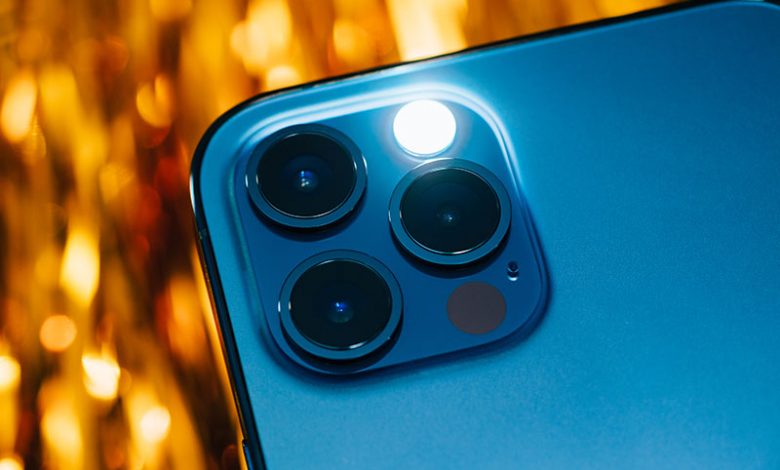
The main causes of iPhone flashlight issues can be grouped into hardware-related issues and software-related problems. Software issues, such as bugs experienced after an iOS update, are usually less challenging to resolve and may only necessitate a simple system reboot or update. On the other hand, hardware-related problems can be more serious. These can involve substantial damage to the LED light or other internal components, which is more costly to repair and often requires professional service.
Steps to Solve the Issues Related to iPhone Flashlight Problems
Basic Solutions to Solving iPhone Flashlight Issues
Starting with basic troubleshooting steps can solve minor software glitches causing the flashlight to malfunction. These solutions include restarting the iPhone, closing all active apps, and resetting all settings.
Advanced Solutions to Fixing iPhone Flashlight Issues
For more complex issues, advanced solutions are necessary. These may involve restoring the iPhone using iTunes or reverting to an older iOS version. If the problem persists after trying all possible software-based solutions, the hardware may be faulty. In this case, it is advisable to go for a professional hardware check-up and necessary repairs.
Should You Use a Third-Party Flashlight App on iPhone?
If all else fails, a possible workaround to bypass this issue is to use third-party flashlight apps available on the App Store. Just remember, this solution should only be considered as a last resort when all other troubleshooting steps have been exhausted.
Re-enabling iPhone Flashlight in Control Center Settings
One of the simple yet effective methods to fix your iPhone flash not working is to try re-enable it from the Control Center settings. This method involves removing the flashlight from the Control Center, restarting your device, and then adding it back.
Removing iPhone Flashlight in Control Center Settings
Go to the "Settings" icon and tap on the "Control Center" option. Find the Shortcut option and go to "Customize Controls." When you arrive here, tap on the red minus (-) sign right next to the flashlight option
Restarting iPhone
After successfully removing the flashlight, restart your iPhone. This step is crucial as it allows your device to reset and clear any potential bugs that may be causing the flashlight not to work.
Adding Back the Flashlight to Control Center
When your device is back up and running, go back to the Control Center settings. Scroll down to the 'More Controls' section and look for the Flashlight option. Tap on the green plus icon next to it to add it back to the Control Center. This effectively re-enables the flashlight feature on your iPhone.
Removing the NFC Tag Reader Option from Control Center
In some cases, issues with other functions in the Control Center may affect the flashlight. A notable example is the NFC Tag Reader. Like the previous steps, you can remove this feature from the Control Center, restart your iPhone, and then re-add it. This simple process can often eliminate bugs and restore functionality to the flashlight.
Managing Camera Settings
Since the iPhone's camera and flashlight share the same hardware component, conflicts can occur, causing the flashlight function to fail. There are solutions to this issue that involve making adjustments to the Camera settings. Here are some of them:
Changing Camera Flash Settings
If you frequently use the flash function in your iPhone camera, it's important to make sure this setting doesn't interfere with your device's flashlight function. After using the flash, it's recommended to switch it off in the camera app.
Force-Quitting Camera Application
Sometimes, the remedy could simply involve force-quitting the camera app. To do this, begin by double-pressing the Home button or swiping up from the home bar. This action will bring up the app switcher. Then locate the camera app card and swipe up to kill the app. Doing so can help to avoid any conflicts with managing the same hardware resource necessary for the flashlight function.
Limiting Camera Access to Third-party Apps
Third-party apps such as Instagram, Snapchat, FaceTime, and QR code reader apps often utilize the camera's flashlight. If any of these apps are open in the background, they could potentially interfere with the flashlight's functionality. It's advised to close these types of apps if you encounter issues with your flashlight.
Checking for the Flashlight Functionality
After adjusting the camera settings, be sure to check the flashlight's functionality to see if the issue has been resolved. By simply swiping up to your iPhone's control center and tapping the flashlight icon, you should be able to turn it on and off freely. If the issue continues to persist after applying these changes, other solutions may need to be explored.
Troubleshooting More Complicated Issues
Should the basic troubleshooting methods fail to fix the iPhone flashlight problem, there are still several more advanced steps to try. These steps include resetting the iPhone settings to their defaults, updating the iPhone's software, and, as a last resort, restoring the iPhone to its factory settings.
Resetting All Settings to Fix iPhone Flashlight
Resetting all settings can eliminate potential configuration conflicts that could cause the flashlight to malfunction. This includes settings related to hardware functionality, user preferences, and system configurations. For iPhones using iOS 15 or later, navigate to Settings > General > Transfer or Reset iPhone > Reset > Reset All iPhone. For iPhones using iOS 14 or earlier, navigate to Settings > General > Reset > Reset All Settings.
Updating iPhone
Keeping your iPhone up to date with the latest software can also help resolve any bugs causing the flashlight to malfunction. By going to the iPhone settings, then General and selecting Software Update, you can check whether any new updates are available. If there are, install them, as they often come with bug fixes that may include a fix for your flashlight issue.
Resetting iPhone to Factory Settings
If none of the previous solutions resolves the issue, the most drastic step is to restore your iPhone to its factory settings. Be aware that this will erase all data from your device, so it's crucial to back up everything important beforehand. To reset the iPhone to factory settings, navigate to Settings > General > Transfer or Reset iPhone > Erase All Content and Settings. As this action is irreversible, consider it as a last resort.
Contacting Apple Support for Further Assistance
If all else fails, or if the flashlight failure persists after trying all the above solutions, it may be a hardware malfunction. In this case, contacting Apple Support for advice or sending your iPhone to an Apple-authorized service center for repair or replacement should be considered. Resolving such complicated issues sometimes requires professional intervention and expertise.