
Solving Issues With Apple Music Not Downloading On iPhones
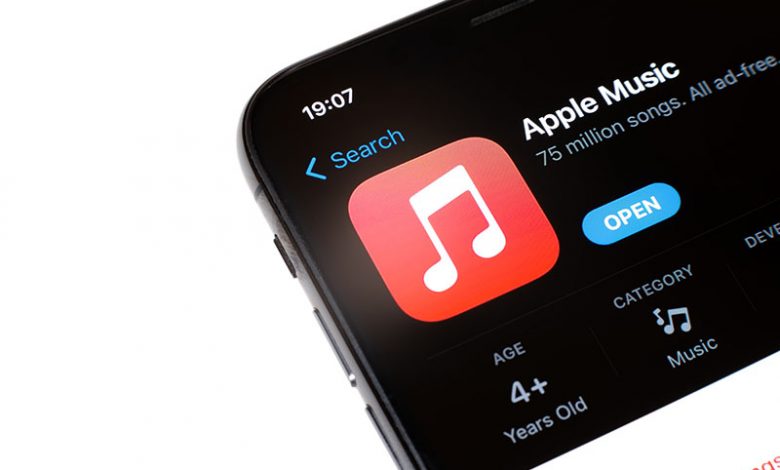
One of the common challenges that iPhone users face is needing help downloading songs on the Apple Music app. This scenario can occur for various reasons ranging from minor glitches to significant issues. As such, it is essential to identify the probable causes to know the most suitable solution.
Table of Contents
Weak Internet Connection
A weak or unstable internet connection is one of the significant reasons why songs may not download on Apple Music. Downloading music involves transmitting large data files that require a steady and robust online connection. If the internet is inconsistent, the download process may fail or take an extended time.
Outdated Apple Music App or iOS
Running an old version of the Apple Music app or the iOS software on your iPhone can inhibit song downloads. Apple continually releases updates to fix bugs and improve the functionality of its products, including Apple Music. Therefore, running the App on an outdated iOS or app version could lead to download problems.
Insufficient iPhone Storage
Your iPhone may need more storage space to download more songs, a common issue among many Apple Music users. Downloaded music files consume a significant amount of storage, and if your iPhone is already filled to the brim, downloading more songs is an issue.
Technical Glitches
At times, the problem may be from something other than your end but due to technical glitches on Apple's side. Such problems could range from server issues, app malfunctions, or sync issues related to iCloud. These glitches usually get resolved with app or device updates.
Troubleshooting Steps
Once you've identified the issues, working through the following troubleshooting steps can help resolve the problem of songs not getting downloaded on the Apple Music app.
Confirm Active Subscription
Check out the status of your Apple Music subscription. You can do that by navigating to your iPhone's Apple ID account settings and confirming the status of your Apple Music subscription. Ensure it is active, as you cannot download songs without a valid subscription.
Show Apple Music Option
Disabling and enabling the "Show Apple Music" option in your settings may solve the issue. For this, go to Settings > Music and toggle off and on the "Show Apple Music" option. This step refreshes the connection between your Apple Music app and its server, potentially resolving download glitches.
Download over Mobile Data
Another setting that might impede your song downloads is the "Download over Mobile Data" option. If this setting is off, your device won't download songs unless connected to a Wi-Fi network. To enable this option, g to Settings > Music and toggling on the "Download over Mobile Data" option. Do consider the potential data charges that might occur, however.
Clear iPhone Storage
Check your iPhone's storage and clear up unnecessary files to create more space if needed. By deleting old or unnecessary apps, photos, videos, and other data-consuming items, you can free up considerable space that the Apple Music app can utilize for downloading songs. To review your storage, follow Settings > General > iPhone Storage. Here, you'll be able to see your used and available storage and choose what to delete.
Further Troubleshooting Steps (if the problem persists)
If, after performing the earlier troubleshooting steps, the problem persists, the following steps could help resolve the issue.
Force Close the App
Force closing the Apple Music app can give it a fresh start and possibly resolve any ongoing issues. Swipe up and pause in the middle of your screen to open the App Switcher (or double-pressing the home button for older iPhone models). Swipe the Apple Music app off the top of the screen to close it, then relaunch it to check if the issue persists.
Update the iOS Software
An outdated iOS version can sometimes cause software glitches, preventing Apple Music from functioning as expected. Thus, we recommend installing software updates. To check for new updates, go to your device's Settings, tap General, and then click on Software Update. If updates are available, tap 'Download and Install.'
Restart the iPhone
Restarting your iPhone can also clear potential technical errors or glitches. Hold down the power button until the 'slide to power off' slider shows up, then slide it. When your iPhone screen goes black, restart your device by pressing the power button again until you see the Apple logo.
Check Internet Connection
A stable, high-speed internet connection is essential for Apple Music to function optimally, including the ability to download songs. Make sure your internet connection is active and regular. If connected to a VPN, consider disconnecting it, as it might slow down your internet speed and affect Apple Music downloads.
Update the Apple Music App
Maintaining the latest updated version of the Apple Music app is crucial, as Apple continually works on resolving bugs and enhancing app functionality. Open the App Store on your iPhone, look for Apple Music, and if an 'UPDATE' button appears, click on it to update the App. If only an 'OPEN' button appears, it indicates that your App has already moved to the latest version.
Final Resolution Steps
When no troubleshooting steps have resolved the issue, the last resort may involve using another device or examining your Apple ID. These final resolution steps could only confirm if the problem is with your iPhone.
Test the Apple Music app on another iPhone
You can test the Apple Music app if you can access another iPhone or Apple device. Log in using your Apple ID and attempt to download songs. If the downloads are successful on this device, there might be an issue with your iPhone which may require professional assistance or repair.
Sign Out and Re-login With Your Apple ID
Your Apple ID serves as a gateway to your Apple Music library. At times, errors associated with it could affect the App's functioning, including downloading songs. A simple sign-out and re-login might fix this. To do so, go to Settings and click on your name, scroll down, and select "Sign Out." After logging out, log in again with your Apple ID, launch the Music app, and try downloading songs.




