
Troubleshooting Guided Access on Your iPhone
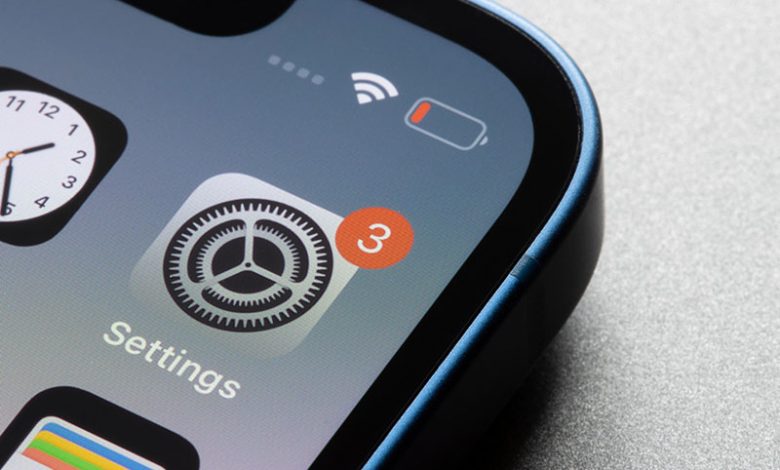
Introduced within the accessibility features of iOS devices, Guided Access is a revolutionary tool that enhances the user interface by limiting device access to a single app. It's an ideal feature for parents who want to limit their kids' device usage, teachers in a classroom setup, businesses for kiosk purposes - or simply for users who wish to focus on a single task without distractions.
While using your iPhone, iPad, or iPod touch, Guided Access can help you stay focused on a particular task. The feature allows you to restrict your device to a single app, enabling you to choose the available features. If you're using apps like TD Snap or Compass, Guided Access is particularly useful as it lets you deactivate the home button, preventing users from inadvertently abandoning the software.
Despite its benefits and simplicity, you may experience Guided Access not functioning correctly on your iPhone. That may include issues where the Guided Access feature does not start, stops unexpectedly, or doesn't allow one to exit an app- amongst other concerns. But don't worry; we're here to help resolve these issues.
Table of Contents
Understanding and Fixing the Problem
Method 1: Disabling and Enabling Guided Access
Firstly, check to see if you have yet to turn on guided access or enable it, but it needs to be more responsive. If the Guided Access feature on your iPhone isn't working, the most straightforward fix is to disable and re-enable the feature. Doing so refreshes the setting. Navigate to your device's Settings, look for Accessibility, and select Guided Access. Once you're there, toggle it off, exit the Settings app, and then return to the Guided Access screen to enable it again.
Method 2: Ensure the Guided Access Session is Enabled
Before you try any other method, you must ensure you have turned on Guided Access on your iPhone. You may have accidentally disabled Guided Access. To check that, go the Settings app and tap on Accessibility. Then, select Guided Access and ensure that the toggle for Guided Access is on. Additionally, make sure the toggle for Accessibility Shortcut is on, as it allows you to activate Guided Access easily by triple-clicking the side or home button (if your iPhone has one).
Note:
The solutions provided here are general troubleshooting tips to resolve common problems experienced with Guided Access on iPhone. If your issues persist or you encounter a unique situation not addressed here, consider contacting Apple support for more comprehensive assistance.
Troubleshooting Guided Access
When Guided Access stops working, there are several approaches you can apply to resolve the issue. From basic fixes to advanced settings adjustments, here is a walkthrough of solutions you can implement to resume Guided Access on your iPhone.
Disabling and Re-enabling Guided Access
As mentioned earlier, the first method entails disabling and reactivating the Guided Access feature to reset it. By toggling off and back on the Guided Access on your iPhone settings, you can refresh the function and resolve any technical glitches preventing it from running correctly.
Restarting the iPhone
If the previous method doesn't work, try restarting your iPhone. After disabling Guided Access through the earlier steps, restart your device to refresh the iPhone system. Sometimes, this could root out any underlying issues preventing Guided Access from functioning.
Revisiting Guided Access in Accessibility
Post the iPhone restart, navigate to Settings > Accessibility > Guided Access. Toggle on the Guided Access and inspect whether it is operating correctly again. Turning off the function, restarting the device, and enabling it can often fix the problem.
Checking and Setting up Face ID and Guided Access Passcode
If the previous methods don't work or the failure of Guided Access is related to Face ID or passcode issues, you will need to check Face ID settings and the passcode. On your iPhone, head to Settings > Accessibility > Guided Access. Click on Passcode Settings and make sure you have activated Face ID. After that, click on Set Guided Access Passcode. Create a passcode for instances when Face ID does not function.
Trying Guided Access Again
Once you have completed all the previous steps, try using Guided Access again. Logically, one of the above methods should have resolved the issue. Nonetheless, if the problem persists, the last resort may be to consult with Apple Support or take the device to a professional for specialized help.
Note
Ensure you've updated your iPhone or iPad to the latest software version. Failure in Guided Access can sometimes be the result of outdated software. Therefore, it is advisable always to keep your devices updated. To check for updates, open the Settings app, tap General > Software Update, and check if any updates are available. Regular system updates smooth out bugs or glitches, often including new enhancements and features.
Wrapping Up
Guided Access is a powerful tool that can significantly help many different types of users. However, like any other technology, it might sometimes face issues that prevent it from operating correctly. Hopefully, the steps in this guide will help you troubleshoot any problems you might encounter with the Guided Access feature on your iPhone.
Further Troubleshooting
If the problem with Guided Access on your iPhone continues despite the initial troubleshooting strategies, you can implement more advanced techniques to remedy the issue. From resetting the iPhone settings to performing a force restart and ensuring iOS is up to date, here are more tools to get Guided Access back on track.
Resetting All iPhone Settings
If the Guided Access feature still refuses to work, you may need to take a more drastic measure. You may need to reset your iPhone settings. Navigating each setting individually to find potential errors can take time and effort. Thus, try resetting all iPhone settings by going to Settings > General > Reset > Reset All Settings. Remember, this action won't erase your data; it will simply revert all settings to their original state.
Force Restarting the iPhone
A force restart may be helpful to resolve this issue. That differs from a regular restart because it involves a specific button combination to force reset the device when it's not responsive. After turning off the Guided Access, you can force restart your device and then turn the Guided Access back on.
Considering Restrictions Set by App Developers
Another aspect to remember is that, in some cases, the inability to use Guided Access could stem from the app developers' restrictions. If you cannot use the feature with a specific app, it may be worth reaching out to the support of that particular application to help troubleshoot this issue.
Checking for any Necessary iOS Updates
It's also essential to keep your iOS device updated, as some functions may only work correctly if your device runs modern software. To check for new updates, open Settings > General > Software Update. Whatever the cause of the issue, ensuring that your device's software is up to date will help to prevent future problems, enhance existing features, and sometimes even add new ones. Regular updates sort out bugs or glitches, including improvements and new functionalities that the older versions may lack.
If all else fails, a total reset can also be an option. Go to Settings > General > Reset > Erase All Contents and Settings. Bear in mind that this procedure will lead to total data loss. Therefore, only use this option as a last resort if you have backed up all your data and cannot resolve the Guided Access issue by other means.




