
Solving Wi-Fi Connectivity Issues for iPhone Users
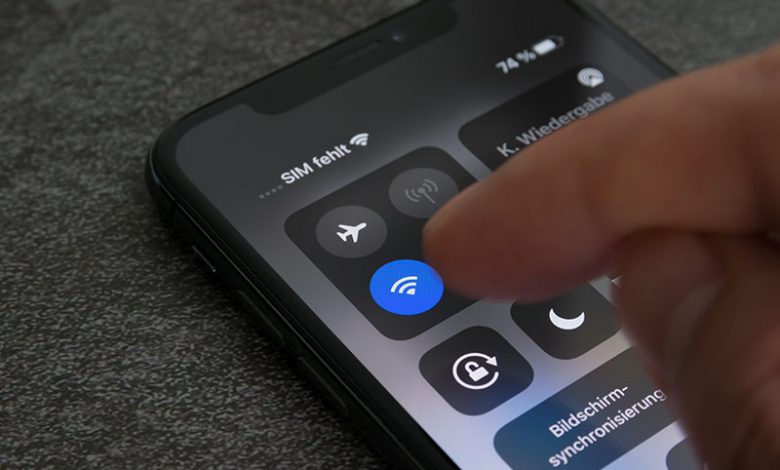
Several iPhone users encounter a common problem where their device refuses to connect to a saved Wi-Fi network. This problem can manifest in several ways, with the iPhone failing to automatically reconnect to a known network or frequently disconnecting from an active Wi-Fi connection.
Table of Contents
Problems with Saved Wi-Fi Networks
The iPhone remembers every wireless network it has ever connected to, along with the network's associated password. That implies it should automatically reconnect to familiar networks when within range, like your home Wi-Fi upon returning from work. However, this only sometimes occurs. One of the main complexities of this issue includes the iPhone's limited user diagnostics. Unlike a Mac or PC, an iPhone does not provide the option to display a list of saved Wi-Fi networks, restricting users' ability to "go under the hood" and address the problem.
Frequent Disconnections
Another manifestation of this issue is the iPhone frequently disconnecting from the Wi-Fi network. Sometimes, the iPhone may latch onto a Wi-Fi network but not maintain a stable connection. This intermittent connection not only disrupts any ongoing downloads or streaming activities but also leads to a significant drain on the battery life. The "Forget and Reconnect Network" method could help resolve the issue.
Forgetting and Reconnecting to the Network
A handy troubleshooting method for dealing with Wi-Fi connectivity issues on an iPhone involves forgetting the network and reconnecting to it. This process forces the iPhone to forget all prior network knowledge and treat it as new. However, before proceeding, users are advised to remember or note down the Wi-Fi password as the process eliminates the saved password.
Steps to Forget and Reconnect a Network
- Open your iPhone's Settings app and select the Wi-Fi option.
- From the list of available networks, tap the problematic network's name to view more details about the network connection, represented with an "i" symbol next to the network's name.
- Click on "Forget This Network" and confirm the action when prompted.
- Wait a few minutes before reattempting to connect to the network using the previously noted password.
This process resets the stored network details and could resolve configuration errors or networking issues hindering the Wi-Fi connection.
Possible Fixes and Solutions
The following potential solutions can come into play when facing difficulties connecting to a Wi-Fi network on an iPhone. Note that these solutions range from simple toggles to slightly more drastic measures like resetting network settings.
Disable Wi-Fi Assist
Wi-Fi Assist is an iOS feature that switches to cellular data when the Wi-Fi connectivity weakens. Though helpful in some situations, it may prevent your phone from adequately connecting to Wi-Fi. Disabling Wi-Fi Assist might help in resolving the Wi-Fi connectivity issues.
Activate and Deactivate Airplane Mode
Switching on the Airplane Mode temporarily turns off all the wireless connections. Turning off Airplane Mode after 15-30 seconds can refresh the connectivity features on your device and fix the Wi-Fi connectivity issues.
Switch Wi-Fi On and Off
Similar to the Airplane mode fix, toggling your iPhone's Wi-Fi switch can refresh the Wi-Fi connection. This action kills the current Wi-Fi connection and forces your iPhone to establish a new one, possibly overcoming glitches or errors.
Turn off Content & Privacy Restrictions
iOS's Content & Privacy Restrictions may sometimes interfere with Wi-Fi connectivity. Turning off these restrictions for a while can be a potential solution when facing Wi-Fi connection issues on your iPhone.
Forget and Rejoin the Wi-Fi Network
As mentioned earlier, forgetting the Wi-Fi network on your iPhone and then reconnecting to it can overcome several Wi-Fi-related troubles. The idea is to make your iPhone treat the network as new and not rely on any old and potentially problematic configuration.
Resetting Network Settings on the iPhone
One of the more drastic solutions involves resetting the network settings on your iPhone. Although this action eliminates all saved networks and passwords, it can clear any complex networking errors causing Wi-Fi issues.
Additional Troubleshooting Tips
If none of the solutions mentioned above work, consider implementing additional troubleshooting tips.
Try Connecting to a Different Wi-Fi Network
Try linking your iPhone to a different Wi-Fi network. This step can help clarify if the problem is related to a specific network or an issue with the iPhone itself. If the second Wi-Fi network works fine, then the problem lies with the original network, and further investigation into the router settings and network configurations might be necessary.
Restart iPhone and Wi-Fi Router
Sometimes, a simple restart can work wonders. Reboot your iPhone by turning it off and on. Do the same with your Wi-Fi router to reset any temporary issues that might interfere with the Wi-Fi connection.
Update iOS Software on the iPhone
Bring your iPhone up-to-date with the latest software from Apple. Occasionally, software glitches can cause connectivity issues, and updating the iOS to the most recent version often fixes such bugs.
Adjust Wi-Fi Settings per Apple’s Recommendations
Apple's support website offers specific Wi-Fi network settings as standard recommendations. Check your Wi-Fi settings to ensure they align with these recommendations. Making necessary corrections could improve your iPhone's Wi-Fi performance and resolve connectivity problems.
When All Else Fails
If all the previously mentioned solutions and troubleshooting tips have failed to resolve the Wi-Fi connection issue on your iPhone, it may be necessary to take more drastic steps.
Reset Wi-Fi Router and Setup From Scratch
Restoring your Wi-Fi router to its factory state and setting it up from scratch can be a last resort when facing persistent Wi-Fi issues. By resetting the router, you are erasing any potential errors in its settings that might impact connections. However, remember that this process will erase all current settings, and reconfiguration will be necessary.
Erase All iPhone Data
Another drastic solution involves wiping all data from your iPhone. Before choosing this option, always ensure you've backed up your data, as this process will restore your iPhone to factory settings. Despite being drastic, it has the potential to solve persistent connectivity issues by eliminating any software glitches or bugs.
Seek Professional Repair for iPhone Device
If your iPhone continues to experience Wi-Fi issues post-reset, there might be a hardware issue with the device itself, such as a faulty Wi-Fi antenna. In such cases, it may be necessary to opt for professional repair or even consider replacing the iPhone if it's out of warranty and repair is not feasible. Apple Stores are an excellent place to seek assistance, although they do not perform specific Wi-Fi antenna repairs and might recommend a complete replacement.
Contact Apple Support or Consider a New Wi-Fi Router
If the problem persists even after trying all steps, and you are sure the issue isn't with your iPhone, the problem might lie with your Wi-Fi router. Replacing the router may be the only solution. For doubts about the iPhone's performance, contact Apple Support for further assistance.




