
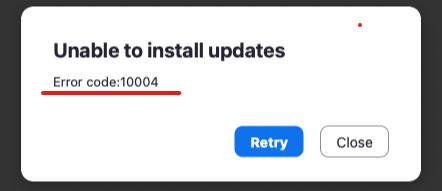
Zoom is a popular platform for video conferencing and remote communication. However, users may sometimes experience technical issues such as the Zoom Error Code 10004. Affecting both Windows- and macOS-based machines, this error can hinder users from joining or hosting meetings, leading to frustration and disruption of virtual communication. Here's the lowdown on what Zoom Error Code 10004 means, how to run a troubleshooting guide, and how to explore in-depth solutions to fix the error on Windows 11.
Table of Contents
Zoom Error Code 10004 Explained
The Zoom Error Code 10004 usually occurs when there is a problem with the internet connection or Zoom's server configuration, especially when failing to apply an automatic update. As a result, users can neither connect to the platform nor participate in video calls. Other common causes for this error code may include:
- The incorrect system date and time settings.
- A suspended account.
- Issues with the Zoom servers themselves.
To resolve this issue, performing some initial troubleshooting to identify the root cause is essential.
Initial troubleshooting steps
Before delving into more advanced solutions for fixing the Zoom Error Code 10004, it's essential to check some fundamental aspects to ensure the issue is not arising from your system settings or connectivity. Here are a few initial steps you can take:
- Check the Zoom Service Status: Visit the Zoom Service Status website (status.zoom.us) to ensure that all services are operational. If you find any service-related issues, wait for Zoom to fix the problem before trying again.
- Restart your device: Sometimes, simply restarting your device can resolve temporary glitches and restore proper functioning.
- Check your internet connection: Verify that your internet connection is stable and working as expected. If necessary, restart your modem or router to improve connectivity.
- Ensure correct system date and time: Zoom's server communication must be corrected. Double-check your computer's date and time settings and correct them if needed.
- Update Zoom App: Make sure you are using the latest version of the Zoom application. Outdated software can lead to compatibility issues and connection errors. Update your app to the newest release if required.
If the initial troubleshooting steps don't resolve the issue, proceed to the more in-depth solutions mentioned below to fix the Zoom Error Code 10004 on Windows 11.
Check Zoom Service Status
Before attempting any advanced troubleshooting methods, verifying if the issue originates from the Zoom server or your system is necessary. Sometimes, Zoom servers might undergo maintenance or experience problems, resulting in user connection errors. To check the status of Zoom services, follow these steps:
1. Visit Zoom Service Status website: Open your web browser and visit the Zoom Service Status website at status.zoom.us. This page provides real-time information about the operational status of all Zoom services, including webinars, meetings, chat, and more.
2. Verify Operational Services: Upon accessing the website, check if all the services are displayed as operational and in green. If any service flashes in red, the problem is likely with the Zoom server, and you should wait for them to resolve the issue before trying again. What if everything appears to be working correctly? In that case, the problem likely originates from your system, and you should proceed with the troubleshooting methods mentioned in this article to fix the Zoom Error Code 10004 on Windows 11.
Applying Potential Fixes
If you have checked the Zoom service status and followed the initial troubleshooting steps, but the error persists, consider trying the following potential fixes on Windows 11:
Manually Update Zoom Client
Ensure that you are using the latest Zoom client by manually updating it. Open Zoom, click on your profile picture, and click "Check for Updates." Follow the underlying instructions to download any available updates and install them. Restart the Zoom application after the update to see if the error has disappeared.
Allow Zoom through Windows Defender Firewall
Windows Defender Firewall or other third-party firewalls can sometimes block Zoom from connecting to its servers. To allow Zoom through Windows Defender Firewall, follow these steps:
- Press the Windows+R keys to load the Run dialog.
- Type "firewall.cpl" and click OK.
- Select "Allow an app or feature through Windows Defender Firewall."
- Click "Change settings."
- Scroll down to find "Zoom Video Conference" and mark the Private and Public checkboxes next to it. If it's not listed, click "Allow another app," then browse to the Zoom folder in %AppData%, find the "bin" folder, and select "Zoom.exe" to add it to the list.
- Click OK to save the changes.
That will allow Zoom to connect to its servers without being blocked by the firewall, potentially resolving the Error Code 10004 issue.
Clear Zoom cache and cookies
Clearing the cache and cookies on Zoom can potentially resolve any problems caused by outdated or corrupted data. To remove your Zoom cache and cookies, follow these steps:
- Close the Zoom application.
- Press the Windows+R key combo to open the Run dialog.
- Type "%AppData%" (without quotes) in the input box and press Enter.
- Navigate to the Zoom folder and delete it (this will remove cache and cookies).
- Restart your computer and relaunch the Zoom application.
After removing the cache and cookies, check if the Zoom Error Code 10004 is resolved on your Windows 11 system.
Alternative Solutions
If the previous troubleshooting steps have failed to resolve the Zoom Error Code 10004 on Windows 11, you can try installing an older version of the Zoom client as an alternative solution:
Install an Older Zoom Version
- Right-click on the Start button and pick "Apps and Features."
- Scroll down to find Zoom, click the three dots next to it, and then select "Uninstall."
- Confirm the uninstallation by clicking "Uninstall" again.
- Open your web browser and visit the Zoom Uptodown website, which contains multiple older Zoom versions.
- Select an older version, click on it, then click the "Download" button.
- Once downloaded, go to your Downloads folder and run the installer.
Disable automatic updates
After installing an older version, it's essential to turn off automatic updates to prevent Zoom from updating itself to the latest version, which may reintroduce the error. Follow these steps:
- Launch the older Zoom app and click "Sign in."
- Submit your login details and sign in to your account.
- Click on your profile picture in the top-right corner and select "Settings."
- Go to the "General" tab and uncheck the box next to "Automatically keep Zoom desktop client up to date."
With automatic updates disabled, your Zoom client should remain on the older version, that doesn't cause the Error Code 10004 issue on your Windows 11 system.




