
Troubleshooting Roblox Error Code 267: How to Check Server Status and Potential Fixes
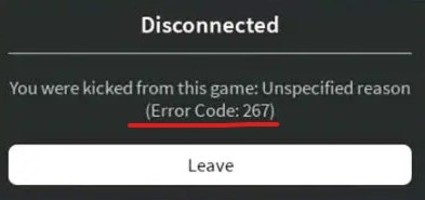
Roblox is a widely used online platform where users can create, share and play games made by other users. However, this platform has its flaws, one of which is the Roblox Error Code 267. Roblox error 267, also known as "Kicked by Server" or "You have been kicked from the game," occurs when a player is forcefully disconnected from a Roblox game by the server. This Error typically happens due to game rules or policy violations, such as cheating, exploiting, or disruptive behavior. If you encounter error 267, the server has detected inappropriate actions from your account and decided to remove you from the game. This Error typically arises when a user tries to use unauthorized hacks or when unusual activity is detected on an account. Join us as we cover various aspects of the Roblox Error Code 267, including its description and accompanying error messages.
Table of Contents
Roblox Error Code 267 Description
The Roblox Error Code 267 typically comes with an error message indicating the reason for the Error. This error code means that the user has been kicked out of the game server due to violating the game's terms of service, suspicious behavior, or using hacks within the game. The Error may appear in various forms, such as:
- DISCONNECTED: You were kicked from this game [Error Code 267]
- BANNED: You have been kicked due to unexpected behavior [Error Code 267]
- KICKED: You were kicked by the game developer [Error Code 267]
Accompanying Error Messages
Along with the error code, users may also encounter additional error messages providing specific information about the cause of the problem. Some common accompanying error messages include:
- Slow Internet Connection: Users with slow internet connections might face this issue due to the high latency between the server and the Roblox client.
- Firewall Blocking: The system's firewall may block Roblox's connection, resulting in an error message.
- Ad-Blocker Interference: Some ad-blockers might interfere with the Roblox platform, causing the Error to appear.
- Empty Game Data: Corrupted or empty game data can lead to an error code, as the Roblox client cannot load the necessary files to run the game smoothly.
Understanding Error Code 267 and its accompanying messages can help users determine the best course of action to resolve the issue and get back to enjoying their favorite games. Multiple solutions are available to address each cause, ensuring a swift return to the Roblox platform.
Check Roblox Server Status
Although the Roblox Error Code 267 is rarely due to server maintenance, checking the server status is essential to rule out any server-related issues. Players can be kicked out or restricted from accessing Roblox experiences if certain server operations fail. To look up the status of the Roblox servers, visit their official maintenance web page.
If all significant components show up as "operational," it is safe to assume that the Error originates from your end, and you should proceed with the other troubleshooting methods listed in this guide. However, if there are server issues, it's best to wait patiently for the servers to return to regular operation before attempting to reaccess Roblox.
Check Your Wi-Fi Connection
Another essential factor to consider when troubleshooting the Roblox Error Code 267 is the stability and speed of your internet connection. To ensure a smooth gaming experience, verify that your connection is stable and fast enough to run Roblox. Test the strength and speed of your internet connection using a wired connection instead of Wi-Fi.
Also, remember to clear your browser cache before accessing the game. This action will ensure you receive the most up-to-date information and reduce the chances of encountering the error code. A reliable internet connection can significantly reduce the likelihood of experiencing the Roblox Error Code 267 and provide a smoother gaming experience on the platform.
Potential Fixes
Several fixes can help resolve the Roblox Error Code 267. The following suggestions may resolve the issue and allow you to connect and enjoy your game sessions.
Clear the Roblox Cache
Clearing the Roblox cache can help resolve issues caused by outdated or corrupted files. To clear the Roblox cache, follow these steps:
- Press the Windows key + R to open the Run dialog box.
- Type "%localappdata%\Roblox\Versions" and press Enter.
- Find the folder with "RobloxPlayerBeta.exe" inside.
- Right-click on the folder and pick "Delete" to clear the cache.
Once completed, relaunch Roblox to see if the Error has gone.
Configure Roblox Launch Options
Adjusting the Roblox launch options helps resolve Error Code 267. Follow these steps to configure the launch options:
- Right-click on the Roblox shortcut on your desktop and select "Properties."
- In the "Target" field, add "--play" to the end of the existing text.
- Select "Apply" then "OK" to save the changes.
Relaunch Roblox and see if the Error has gone.
Allow Roblox Through Windows Defender Firewall
Ensuring that Roblox is allowed through the Windows Defender Firewall can help prevent connectivity issues. Follow these steps:
- Press the Windows key, type "Firewall," then select "Windows Defender Firewall."
- Tick "Allow an app or feature through Windows Defender Firewall."
- Click the "Change settings" button.
- Scroll down the list until you find "Roblox" or "RobloxPlayerBeta.exe."
- Tick both the "Private" and "Public" checkboxes for Roblox.
- Click "OK" to save the changes.
Try relaunching Roblox to see if the Error has gone.
Set Your Browser as Default
Ensure that your browser (Google Chrome or Mozilla Firefox) is the default browser on your system. Many Roblox users have reported that not using the default browser was the root cause of the Error. To set your current browser as the default, follow the steps below:
- Use the Windows key to access the Start Menu.
- Type "Default Apps" and press Enter.
- Scroll down to the "Web Browser" option.
- Click on the current browser under the "Web Browser" option and pick your desired browser from the list of options.
After setting your browser as default, clear your browser cache to ensure no outdated or corrupted data affects your Roblox experience. Follow the "Check Your Wi-Fi Connection" steps to clear your browser cache.
Disable Browser Extensions
Unwanted browser extensions can also interfere with your Roblox experience and cause Error Code 267. To disable or remove unnecessary extensions, follow these steps for Google Chrome, Mozilla Firefox, and Microsoft Edge.
Disable Extensions on Google Chrome
- Open Chrome. Click the three dots at the top-right corner, select More Tools, and click Extensions.
- Toggle the slider next to an extension to turn it off, or click "Remove" to uninstall the extension.
Disable Extensions on Mozilla Firefox
- Open Firefox. Open the menu and click Add-ons and Themes.
- Select the Extensions tab.
- Toggle the slider next to an extension to deactivate it, or click "Remove" to uninstall the extension.
Disable Extensions on Microsoft Edge
- Open Microsoft Edge. Click the three dots at the top-right corner, and select Extensions.
- Toggle the slider next to an extension to turn it off, or click "Remove" to uninstall the extension.
After disabling or removing unwanted extensions, try reconnecting to Roblox to see if Error Code 267 has disappeared. If the Error persists, you can contact Roblox support for further assistance. They can provide specific troubleshooting steps or investigate if there are any underlying issues.




