
Table of Contents
Understanding Portrait Mode on FaceTime
The Portrait Mode in FaceTime is a recent introduction by Apple, designed to enhance the users' video call experience. However, some users have reported difficulties with this function, so it’s important to know about the functionality, compatibility, and benefits of this feature.
Description of Portrait Mode on FaceTime
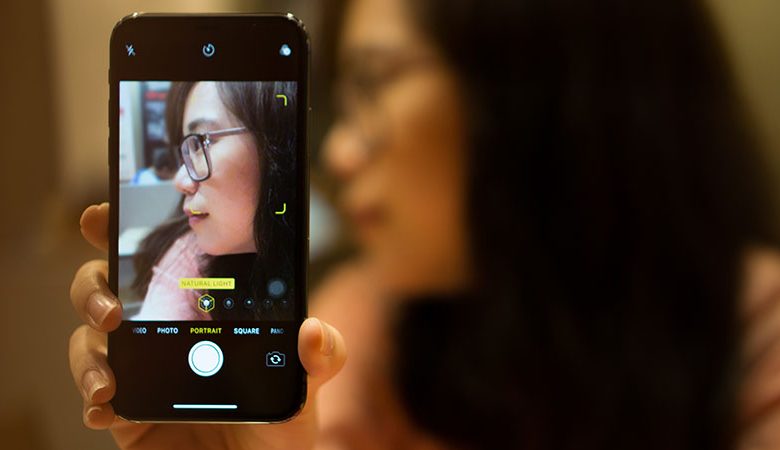
Portrait Mode on FaceTime is a distinctive feature that assists in highlighting the subject of the video call by blurring the background. The prime objective of this feature is to ensure that any distracting elements in the background do not detract from the main user's presence. This function essentially makes the user stand out regardless of the state of their surroundings during the call.
Compatibility of devices with Portrait Mode
Although relatively new, not all Apple devices support Portrait Mode. To use this feature, users are required to possess an iPhone model that can support FaceTime and has the necessary technology to use Portrait Mode. Further details regarding device compatibility can be found in Apple's official documentation or on their website.
Features and Benefits of Portrait Mode on FaceTime
There are multiple benefits to using Portrait Mode on FaceTime, the most significant being the ability to focus on the subject, enhancing the overall quality of the video call. This feature blurs distracting elements in the background, eliminating any potential distractions during the call. Furthermore, it improves the call's overall aesthetic, making for a more professional appearance, be it for personal or professional calls. Enabling Portrait Mode can be done in several ways, either before starting the call or during the call depending upon user preference.
Possible Issues with Portrait Mode on FaceTime
While the Portrait Mode on FaceTime is indeed a useful and innovative feature, some users have reported difficulties in using it. Various reasons can contribute to this issue. Here are some of the most commonly encountered problems.
Portrait Mode is not enabled on the device
The initial possible issue could be as simple as the Portrait Mode not being activated on the device. Users may forget to enable this feature before or during a call, leading to difficulties in its functioning. A quick check can confirm whether the Portrait Mode is turned on or not. This can be done by going into the FaceTime settings before starting a call.
Hardware issues with the device’s depth sensor
Another major factor that could be interfering with the performance of the Portrait Mode is a problem with the device's depth sensor. The depth sensor plays a vital role in capturing the subject of the portrait and blurring out the background. If there is a hardware issue with this sensor, then the camera will be unable to function properly.
Glitches or issues with the FaceTime application
The non-functionality of Portrait Mode may also be due to software glitches with the FaceTime application. Just like any other application, FaceTime is also vulnerable to bugs and glitches that can cause it to malfunction.
In cases where the Portrait Mode is still not working, it's essential to contact the appropriate support service for help. If the issue is due to a hardware related problem with the depth sensor of the camera, users may have to take their iPhones to the nearest Apple store for physical examination and potential repair.
Troubleshooting Portrait Mode on FaceTime
Experiencing difficulties with the Portrait Mode on FaceTime can be frustrating, but fortunately, there are several measures you can take to fix the issue. The following steps suggest ways of ensuring that Portrait Mode is enabled, restarting FaceTime, checking for system updates and seeking support for hardware issues.
Steps to Enable Portrait Mode in a FaceTime Call
To ensure an optimal video call experience, it's crucial to activate Portrait Mode in FaceTime. It can be enabled before a call is placed or during an ongoing call, depending on your preference. While in a call, simply tap on the screen to display the control panel and tap the Portrait Mode icon to toggle the feature on or off.
Checking if Portrait Mode in FaceTime is Activated
Before proceeding with other solutions, it's smart to check if Portrait Mode is currently activated on your device. Generally, if it doesn't seem to work, it could simply be a case of the feature not being turned on. Navigate to the FaceTime app, place a call, then check the controls panel to ensure Portrait Mode is active.
Force Quit and Relaunch FaceTime
If the Portrait Mode feature is still unresponsive, you might need to force quit FaceTime and then relaunch it. This action can often fix minor glitches that might prevent the application from running smoothly. Closing the app completely and reopening it refreshes the system, possibly resolving the issue.
Checking for System Updates
Occasionally, the problems you encounter could be due to outdated system software. Apple frequently rolls out updates that could solve various bugs in the system, including errors with FaceTime. Make sure your device is updated to the latest iOS version to ensure the functionality of all the features.
Contacting Support for Hardware Issues
If none of the solutions seem to work, you might be dealing with a hardware issue, especially if the difficulties you're experiencing involve depth perception on your device. In this instance, it's advised to contact Apple System Support or take your iPhone to an Apple store to get the device diagnosed and the issue sorted out.
Additional Information on FaceTime Usage
Understandably, questions may arise regarding the use of Portrait Mode on FaceTime or even concerning FaceTime's usage more generally. Here, we aim to address a few common queries about enhancing video calls, handling incessant calls, and troubleshooting issues.
Using Portrait Mode for Enhanced Video Calls
For users looking to enhance their video call quality in FaceTime, enabling Portrait Mode is a golden tip. As opposed to using filters to blur the background, Portrait Mode automatically enhances the video's focus by blurring the user's surroundings. To enable it during a call, tap on your video thumbnail, then tap the Portrait Mode icon on the upper left side of the screen. This way, the focus remains on you, ensuring clear and professional video calls.
How to Handle Continuous FaceTime Calls
FaceTime service is programmed to provide video calls, which may at times become vexing if the user is persistently receiving calls. If you're experiencing this issue, there exists a guide to guide you on how to turn off FaceTime on the iPhone. This way, you will be able to control the time and circumstances under which you receive FaceTime calls for your convenience.
Inviting Us to Cover Any Troubleshooting or Particular Issues
If you have any more concerns or queries regarding Portrait Mode, or should you need us to cover any specific issues or troubleshoot certain problems, feel free to let us know. Our technical team is prepared to provide solutions to the challenges you face while using Apple products. Be sure to stay connected with us for fresh updates and pertinent information regarding all things Apple.




