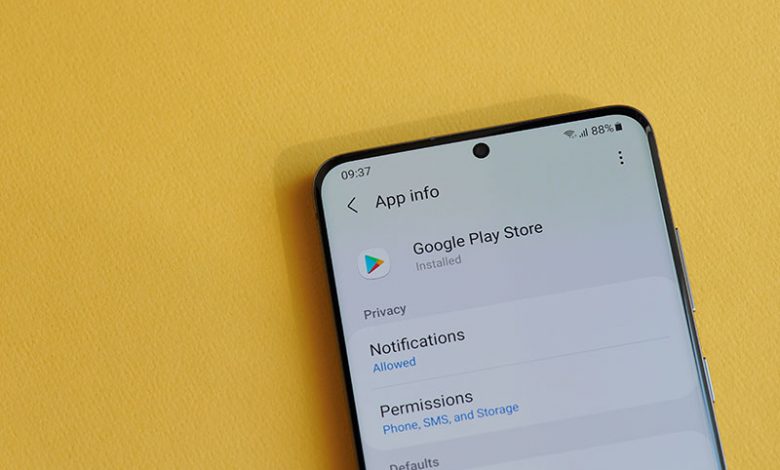
When your call history is not showing up on Android, one of the first things you can try is granting Call Log permissions to the Phone app. This simple step can often fix the issue of disappearing call logs. Here is a step-by-step guide on how to do it:
- Accessing the Phone App's Information Page: Find the Phone or Dialer apps on your Android device, then long-press on them. A small "info" icon should appear. Tap on this icon to go to the app's Information Page.
- Navigate to the Permissions: Once on the Information Page, look for the “Permissions” tab and tap on it. This will show you a list of all the Phone app's permissions.
- Check the Call Log Permission: Scroll down until you find the “Call Logs” permission. Check whether this permission is denied. If it is, we have possibly identified why your call history is not showing up.
- Edit the Call Log Permission: If the Call Logs permission is denied, you must edit it. Tap on the “Call Logs” permission to proceed with the changes.
- Allow the Call Log Permission: After tapping on the “Call Logs” permission, you can allow or deny it. Choose to “Allow” the Call Logs permission. This grants the Phone app the necessary permission to access your call history, which should fix the issue of your call history not showing up.
After following these steps, make some calls using your phone. Then, check to see if your call history is now displaying correctly.
Table of Contents
Clearing the System App’s Cache
If granting call log permissions to your Phone app didn't work, another potential fix for your call history not showing up lies in the system apps. An accumulation of cache can sometimes interfere with the functioning of the system apps, disrupting the Phone app and preventing your call history from being displayed.
- Navigate to Apps in Settings: Open the Settings on your Android device, and scroll down until you see the "Apps." Tap on it to open up a list of all installed apps.
- Show system apps: System apps won't initially appear in the list of applications. To make them visible, tap the "drop-down" icon and turn on the "Show system apps" feature.
- Locate the Call Log Backup/Restore App: Once the system apps are showing, use the search box or scroll to find the “Call Log Backup/Restore” app. This system app is directly related to managing your call logs.
- Open Storage: Open the “Call Log Backup/Restore” app and navigate to the “Storage” section. This section manages the space the app uses.
- Clear the Call log cache: In the “Storage” section, you will find an option to “Clear cache.” Tap on it to clear all cache stored by the “Call Log Backup/Restore” app. This clearing action can often help with issues related to displaying call history.
Finally, close all apps and windows, then reopen your call history. It should hopefully now display correctly.
Force Stop the Phone App
If the previous solutions failed to fix the issue, your next step would be to force-stop the Phone app. A temporary glitch in the app can sometimes result in the call history not showing up on Android. Here are the steps on how to force stop the Phone app:
- Go to Apps via Settings: Swipe up and open “Settings” on your Android device, then scroll down to the “Apps” option to find all your installed apps.
- Find the Phone App: In the list of apps, scroll down to find the “Phone” app. If you use a different dialer app like ODialer or Samsung Dialer, open that one instead.
- Force Stop the Phone App: Once you have opened the Phone app settings, look for the “Force Stop” option and tap it. A confirmation message may appear – if it does, confirm to force stop the app. This action will close all processes related to the Phone app, which may help if the app is experiencing a temporary glitch.
- Open the Phone App: Re-open the Phone app after force-stopping it. This will start the app afresh, potentially without the previous issues.
- Check the Call History: Touch the "Call history" tab after re-launching the Phone app. You should now hopefully find your complete call history displayed correctly. If this solution worked, it means the issue resulted from a temporary glitch in the Phone app.
Use the System’s Default Dialer app
If none of the previous steps have resolved your issue, especially if you're using a third-party phone or dialer app, it might be worthwhile to try using the system's default Dialer app. The system's default Dialer app is designed to work optimally with your device's hardware and software, making it less likely to encounter compatibility issues such as failing to display call history. Here are the steps to use the system's default Dialer:
- Open Settings and Apps: Open the Settings on your device, then go to the “Apps” section to view all installed apps.
- Open the Phone app settings: Find and open the “Phone” app in the list of apps. This will take you to the Phone app settings, where you can modify how the app works.
- Open the Calling app setting: Find and open the “Calling app” setting in the Phone app settings. This setting will allow you to choose which dialer app to use when making calls.
- Set the Phone app as the default: On the Default phone app screen, select the app listed as (System Default). This will set that app as the default dialer on your device. After doing this, open the system default Phone app.
- Allow permissions: When you open the system default Phone app, it may ask for specific permissions. Grant the permissions by selecting "Allow" when prompted. This will allow the Phone app to access necessary data such as your call history.
After following these steps, try accessing the Call History on your Phone app to see if the issue has been resolved.