Sleep mode settings on Android devices control how and when the device goes into a low-power state to conserve energy when it's not actively used. This feature is also sometimes referred to as "Doze" mode. Managing sleep mode settings on Android devices can help optimize battery life and control how the device conserves energy when it's not in active use.
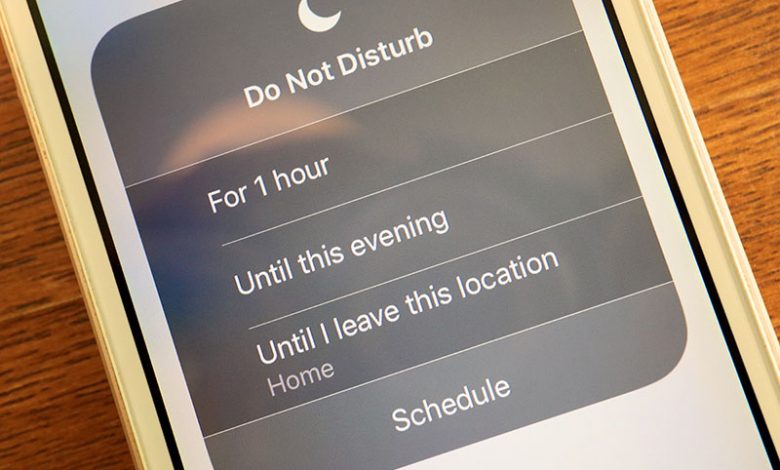
To configure sleep mode settings on your Android device, go to "Settings" > "Battery" or "Battery & Performance" > "Battery Saver" or "Battery Optimization." From there, you can adjust sleep mode preferences and manage battery usage for individual apps. For example, the "Do Not Disturb" mode can often turn on automatically due to pre-set routines in your settings. One common cause is the "Sleep" settings in your device. To modify these settings and stop the automatic triggering of "Do not disturb" mode, perform the following steps:
- Access the "Settings" icon. On your Android device, find the ‘settings’ icon, usually represented by a gear-like symbol. Tap on it to open your phone's settings. This is where all the systematic adjustments and personalization suit your preferences.
- Navigate to the "Modes and routines" setting. Scroll down the options available in the settings until you find the “Modes and routines” setting. This is usually under the “Intelligent Features” section of your phone’s settings. Select this option to view your device's various modes and routines.
- Proceed to the "Modes" tab. Upon opening the “Modes and routines” setting, you'll see several tabs such as “Modes,” “Routines,” and “Customisations.” Navigate and click on the “Modes” tab, which has the settings for various modes, including the "Sleep" mode.
- Change the "Sleep" settings to turn off the "Do not disturb" button. In the "Modes" tab, find and tap the "Sleep" mode. Here, you'll find different settings that automate certain features of your device when sleep mode is triggered. Look for the “Do not disturb” setting. Once located, toggle off the "Do not disturb" button. This prevents your device from automatically activating the “Do not disturb” mode during the preset sleep schedule.
Table of Contents
Turn off the Special Access of Google Play Services
The automatic activation of “Do Not Disturb” can sometimes be caused by certain apps, such as Google Play Services, which have been granted special access to this feature. You can disable this special access for Google Play Services by following the steps below:
- Open the "Settings" utility. Start by clicking on the "Settings" icon on your home screen or app drawer to access the settings menu of your Android device. It is usually depicted as a gear symbol.
- Scroll down and open "Apps." Upon entering the settings menu, navigate and tap the "Apps" option. This will take you to a screen to see a list of all the apps installed on your device.
- Navigate to the "Special access" via the (⋮) button. On the top right corner of the screen, you will find a kebab button depicted by three vertical dots (⋮). Click on this button, and a drop-down menu will appear. Select the "Special access" option from the drop-down menu.
- Open the "Do Not Disturb permission". Under the "Special Access" menu, scroll down until you find the "Do Not Disturb permission" option and tap on it. This will open a new page showing all the apps that currently have access to your device's "Do Not Disturb" feature.
- Locate and disable the "Google Play Services" app's DND access. From the list of apps, seek out "Google Play Services." Upon locating the app, click on it. You will be taken to a new page to see the "Allow Do Not Disturb" switch. Switch it off to disable Google Play Services from automatically triggering your device's “Do Not Disturb” mode.
Disable the Silence Notifications While Driving Feature
Another common reason your Android phone automatically activates the "Do Not Disturb" mode is the "Silence Notifications While Driving" feature. This function is designed to enhance your safety by silencing notifications when you are driving. Follow the steps below to disable this feature:
- Open Android phone settings. To start, tap the "Settings" icon on your Android phone. This will open the settings menu where various configuration options for your device are located.
- Navigate to the “Personal Safety” setting. In the settings menu, scroll down until you find the "Google" option and tap on it. Next, tap the "Personal Safety” setting in Google settings. This is usually located at the bottom of the list. The “Personal Safety” section contains several features and tools that help you stay safe.
- Open and turn off the "Silence notifications while driving" option. In the “Personal Safety” menu, locate and open the "Silence Notifications While Driving" option. You can turn it off by tapping the toggle switch next to it. This will prevent your device’s “Do Not Disturb” mode from activating automatically whenever you are driving.
Edit Bedtime Settings and More
Some present features on your Android phone, like the "Bedtime" mode and "Driving Mode," can cause your phone to turn on the "Do Not Disturb" mode automatically. Several settings need to be checked and possibly adjusted to resolve this issue.
- Access and edit the "Bedtime" mode on the Clock app. Open the Clock app on your Android phone and select the "Bedtime" tab. When you reach the "Bedtime" settings, check the "Do Not Disturb for Bedtime mode" option and turn it off if enabled. This will prevent the "Do Not Disturb" mode from being activated during your preset bedtime schedule.
- Disabling DND from the Control Center. If you're not planning to use the "Do Not Disturb" function regularly, it would be best to disable it altogether. To do this, navigate to your device's Control Center and toggle off the "Do Not Disturb" button.
- Delete any DND schedules from the "Modes and Routines" settings. Any scheduled "Do Not Disturb" modes in your phone settings might result in the automatic engagement of the mode. To stop this from happening, navigate to your device's “Modes and Routines” settings and delete any existing "Do Not Disturb" schedules.
- Alter the "Digital Wellbeing and parental controls" settings. Inside the “Digital Wellbeing & parental controls" settings of your phone, you might find some settings triggering the "Do Not Disturb" mode, like the "Bedtime mode." Turn off any settings in this section that may enable the "Do Not Disturb" mode.
- Disable the "Flip to Silence" option in the Phone app. Some Android models come with a "Flip to Silence" feature, which, when activated, turns on the "Do Not Disturb" mode. Open your Phone app's settings and disable this feature to prevent accidental "Do Not Disturb activation."
- Deactivate the "Driving Mode" in the Google Maps navigation settings. Your Google Maps app may also be causing automatic "Do Not Disturb" activation through its "Driving Mode." To prevent this, open the Google Maps navigation settings and turn off the "Driving Mode" if it is currently enabled.