How to Use and Manage WhatsApp Emoji Reactions
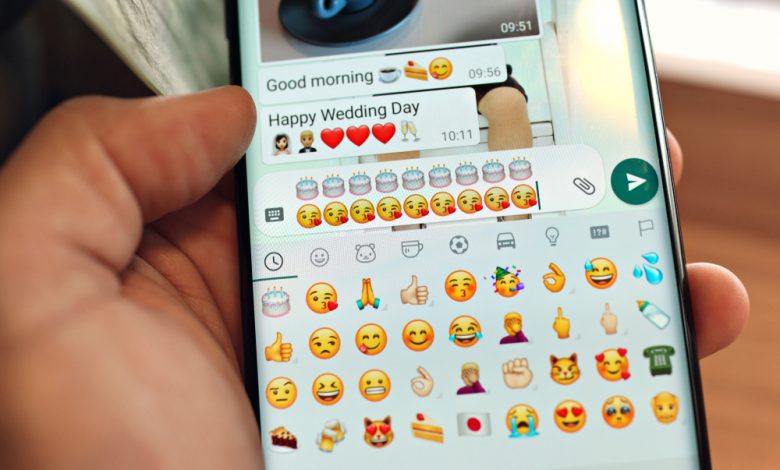
WhatsApp emoji reactions allow users to express themselves by reacting to individual messages with emojis. This feature has been available on other platforms like Facebook Messenger and Instagram. It is now being rolled out for more users on both Android and iOS devices, including iPhones and the web version of WhatsApp. To access this functionality, users need to update their WhatsApp app. In this guide, we will explain how to add emoji reactions to messages on WhatsApp on iPhone and the web.
Table of Contents
Adding Emoji Reactions on iPhone
- Open the WhatsApp application on your iPhone.
- Go to an individual or group chat where you want to react to a message with an emoji.
- Find the specific message you want to react to and long-press on it.
- A small popup menu with emojis will appear above the message. Scroll horizontally through the emojis and select the one you want to use as a reaction.
- Once you've chosen your desired emoji, it will integrate with the message, and other chat participants can see your reaction.
Adding Emoji Reactions on WhatsApp Web
- To access WhatsApp on your computer, open a web browser to access the WhatsApp Web page at https://web.whatsapp.com/. Then, scan the QR code provided on the website.
- Once logged in, open a chat (individual or group) where you want to react to a message with an emoji.
- Find the message you want to react to and hover your cursor over it. An emoji icon will appear to the right of the message.
- Click on the emoji icon, and a small popup menu with emojis will appear. Scroll horizontally through the emojis and select the one you want to use as a reaction.
- After selecting your desired emoji, it will append to the message, and other chat participants can see your reaction.
Reacting to a Message with Emojis on WhatsApp
Using emoji reactions on WhatsApp allows users to express their feelings and thoughts more effectively within individual and group chats. The methods for adding emoji reactions on WhatsApp differ for iPhone, iPad, Mac, and web versions. We will go through the process for each version below.
Reacting to Messages with Emojis on iPhone and iPad
- To use WhatsApp on your iPhone or iPad, open the application.
- Open the chat where you want to react to a message.
- To respond to a specific message, select it and hold down on it until a menu and emojis appear.
- Choose the emoji reaction you want and tap on it.
- The emoji reaction will then appear under the message for all chat participants.
Reacting to Messages with Emojis on Mac and Web Version
- Visit the WhatsApp Web site (https://web.whatsapp.com/) on your computer's web browser, or open the WhatsApp desktop app and log in to your account by scanning the QR code.
- Open the chat where you want to react to a message.
- Select the message you want to respond to. Next to the message, click on the smiley face that appears as you hover over it. You'll see all available emojis to react with.
- To react to a message, click on the desired emoji. The selected emoji will appear below the message for everyone in the chat.
How to Change Emoji Reactions to Messages on WhatsApp?
If you've accidentally chosen the wrong emoji reaction or changed your mind, you can easily modify your emoji reaction on WhatsApp. The process differs slightly for iPhone, iPad, Mac, and web versions, so here's a step-by-step guide.
Changing Emoji Reactions on iPhone and iPad
- To access WhatsApp on your iPhone or iPad, open the application.
- Open the chat where you want to change your emoji reaction.
- To select the message with an emoji reaction, tap and hold until a menu and emojis appear.
- Tap on the new emoji you want to replace the previous one with.
Changing Emoji Reactions on Mac and Web
- Visit the WhatsApp Web site (https://web.whatsapp.com/) on your computer's web browser, or open the WhatsApp desktop app and log in to your account by scanning the QR code.
- Open the chat where you want to change your emoji reaction.
- Select the message with the emoji reaction. Next to the message, click on the smiley face icon when it appears as you hover over it.
- Click on the new emoji you want to replace the previous one with.
Following these simple steps, you can quickly change your emoji reactions on messages in WhatsApp for iPhone, iPad, Mac, and web versions.
How to Remove and Prevent Emoji Reactions on WhatsApp?
If you want to remove an emoji reaction from a message or prevent further reactions, there are different steps for iPhone, iPad, Mac, and web versions. Here's a guide on removing and preventing emoji reactions on each version.
Removing Emoji Reactions on iPhone and iPad
- Launch the WhatsApp application on your iPhone or iPad.
- Open the chat where you want to remove an emoji reaction.
- Select the message with the emoji reaction, then tap and hold until a menu and emojis appear on the screen.
- Please tap on the same emoji to remove it.
Alternatively, you can:
- Launch the WhatsApp application on your iPhone or iPad.
- Open the chat where you want to remove an emoji reaction.
- Tap on the message reaction you want to remove.
- Then, tap on the "Tap to remove" option.
Removing Emoji Reactions on Mac and Web
- Visit the WhatsApp Web site (https://web.whatsapp.com/) on your computer's web browser, or open the WhatsApp desktop app and log in to your account by scanning the QR code.
- Open the chat where you want to remove an emoji reaction.
- Select the message with the emoji reaction. Click on the smiley face icon when you hover over it.
- Then, click on the same emoji to remove it.
Alternatively, you can:
- Visit the WhatsApp Web site (https://web.whatsapp.com/) on your computer's web browser, or open the WhatsApp desktop app and log in to your account by scanning the QR code.
- Open the chat and locate the message with the emoji reaction you want to remove.
- Click on the emoji under the message and select "Click to remove."
Preventing Reactions by Deleting Messages
If you want to prevent users from reacting to specific messages:
- Consider deleting those messages.
- Remember that this action will only apply to your view of the chat, and the messages will still be visible to other participants unless they delete the messages from their devices.
- Remember that deleting a message is permanent and cannot be undone.